In the previous article, Microsoft Teams: Breakout Rooms, we discussed how and what Breakout Rooms are and how important they are for the Microsoft Teams collaborative platform. But how does Microsoft Teams Breakout Rooms work?
The organizer of the meeting is the administrator who has control of this feature. Once the organizer joints the meeting, then he/she can divide the larger video or audio group into smaller discussion groups, up to 50 Breakout Rooms, thereby making these smaller discussion groups more effective with brainstorming, collaborating, and advancing towards solutions.
The organizer can also pre-create the breakout rooms ahead of joining the meeting and configure all the settings so he/she does not have to do during the meeting.
The administrator can add, remove, name, and rename the rooms and can also assign users to a room, open or close the room multiple times during the session and move participants between rooms. Upon joining a session, the administrator is muted, though unmuting will allow the administrator to participate in that session. Important to note is that Microsoft Teams Breakout Rooms management can only be created through Teams Client while participants can join via desktop, web or mobile.
Creating, Naming, and Starting Breakout Rooms
To start, schedule the meeting in Microsoft Calendar by creating a New Meeting or start the meeting in a Teams Chanel with Meet Now. Then add your attendees (your participants) and:
1. Join your meeting at the scheduled time. Upon joining, a new window will pop up;
2. Wait for your attendees to join. Once they have joined, you can proceed to create your Breakout Room;
3. Select Breakout Rooms from your meeting controls;
4. Choose from the dropdown menu the number of Breakout Rooms you want to create and whether you want to assign the attendees to each room manually or automatically. This is the only time you will be able to assign automatically.
To add participants manually:
a. Expand the Assign Participants list;
b. Hovering over each participant will bring up checkboxes. Check the checkbox if you want to add this participant to a Breakout Room;
c. Select the More option and choose the room from the list. This will assign the participant to the Breakout Room;
d. Repeat steps b and c until all participants have been assigned;
e. To see which participants are assigned to a Breakout room, locate the arrow next the room’s name. Click and expand this arrow and the names of the assigned participants will appear;
To add participants automatically, simply choose the option to do so. In order for this option to work, participants will have to have been pre-emptively assigned to the Breakout Rooms;
5. Name the Breakout Rooms to reflect the discussion such as project name so it is easily identifiable and a reminder for participants. If you need to rename the Breakout Room, then choose the More Options next the room. Then choose Rename Room, key in the new name of the Breakout Room, and save by selecting Rename Room;
6. Starting Breakout Rooms can be done individually on a room to room basis, or you can start all Breakout Rooms at the same time. To start them individually, then choose the More Options next to the Breakout Room name. Next choose Open Room. The Breakout Room is now opened. To open them en masse, select Open Rooms. The room status from closed to open will appear as Open to confirm that the Breakout Room is now opened.
There are many benefits for implementing Microsoft Teams Breakout Rooms ranging from organizing large groups into smaller and manageable clusters to providing a platform that supports users that are working remotely and in person with the main objective of providing easy maneuverability, flexible accessibility, numerous personnel meeting scalability, and collaborative stability.
Administration of Breakout Rooms
As the administrator and organizer of the meeting, you have several abilities in relation to the Breakout Rooms:
1. Join a Breakout Room: to check on a Breakout Room’s progress, select More Options next to the room name. Then, select Join Room to join. Ready to leave? Select Return and you will leave the Breakout Room and join back into the main meeting;
2. Send an Announcement to the Breakout Rooms: provide prompts or time updates through an announcement. To send an Announcement after the meeting starts, select More Options and then Make an Announcement. Key in your announcement and then choose Select. Your announcement will appear in the chat for all participants, and they will be alerted with a notification that it is there;
3. Reassign Participants: move participants individually to different Breakout Rooms but note that this function can only currently be performed when the Breakout Rooms are closed. In the Breakout Room, expand the list of participants. A checkbox will appear as you hover over the participant’s name. Check this checkbox. Next, select the More Options and the Breakout Room name that you would like to reassign the participant to. Check the checkbox of the re-assigned Breakout Room, and your participant has now been re-assigned;
4. Chat with Breakout Room Participants: as with regular meetings, the administrator and participants will be able to access from the chats list and
from Chat, the Breakout Room’s chat. Participants will only see and access chat from their assigned Breakout Room, whereas the administrator can see and access all Breakout Room chats. Administrators will add the participant at the Breakout Room is opened and participants will automatically be removed from the chat if they are re-assigned to another Breakout Room or when the room is closed. The chat history and shared files will still be accessible to participants even after the Breakout Room is closed;
5. Add or Delete Breakout Room: additional Breakout Rooms can be added by choosing Add Room, keying in the room name, confirming, and then adding the participants. Deleting a Breakout Room can be done by selecting More Options next the room, and then choosing Delete Room. The Breakout Room is now deleted;
6. Close Breakout Rooms: close Breakout Rooms individually by selecting More Options next the room name, and then Close Room. To close Breakout Room en masse, select Close Rooms. The status of the rooms will now change from Open to Closed. Once all participants are out of their Breakout Rooms, choose Resume and all participants will be back in the general, larger, main meeting group.
7. Save Notes, Recordings, and Files from Breakout Rooms: these materials can be accessed in the Breakout Room’s chat, during and after the closure of the Room. However, the ability to add additional materials or continue to chat will not be possible once the Room is closed; and
8. Edit Breakout Room Settings: participants are automatically moved into open rooms as a default setting. This setting can be changed by selecting More Options, then Room Settings. Next, check on the Automatically Move check box to de-select participants. If the default setting is de-selected, then participants will receive a message to join a Breakout Room, which they must choose by selecting Join before being moved.
Microsoft Teams is evolving quickly as it adapts and flexes with the needs of its users, whether remote, onsite, or a hybridization of the two. The ability to create, monitor, and delete Breakout Rooms provides the flexibility that many users and corporations need for collaboration, communication, and project management. With Microsoft Teams Breakout Rooms, collaboration has become that much easier.
For some, life may have felt like it has been on a hold pattern during this pandemic but at Microsoft, they have been anything but on a hold pattern. They’ve been busy planning, strategizing, creating, designing, testing, and finalizing new features for many of their platforms, including Microsoft Teams.
Microsoft Teams is the interface and platform for users within a corporation and their external clients to collaborate. Communications between team members and clients is smoother, easier, and more accessible because of Microsoft Teams. There are many new features being added, but the most anticipated, and possibly the biggest game changer, is Microsoft Teams Breakout Rooms.
Similar to large in-person conferences and conventions, virtual team meetings can range from two participates to upwards of hundreds that gather in one large venue. Within this large venue, areas are broken down into zones. Within these zones will be kiosks or spaces, like rooms, that have specialized vendors, consultants or where specific types of training will take place. Microsoft Teams Breakout Rooms are similar in that they provide a virtual space for smaller groups of people to gather, holding discussions on similar topics, or maybe one topic, brainstorm, and reach solutions.
How the administration and creation of the Breakout Rooms in Microsoft Teams is managed is explained in the following article, Microsoft Teams Breakout Rooms and Administration.
On the participant side, they will be able to chat in the Breakout Room and share content from Whiteboards and PowerPoint. The chat will only be visible for participants in that particular Breakout Room and only they can participate in the chat, with the exception of the Administrator who is able to access and participate in all Breakout Rooms. Participants are not able to move freely between Breakout Rooms or the main meeting. They must wait until the administrator adds them back to the main meeting or re-assigns them to another Breakout Room. The participant, can however, request the administrator contact them.
What can participants do in the Breakout Room?
As part of the new features being added to Microsoft Teams Breakout Rooms, managers that are selected and assigned to rooms by the administrator will now be able to manage rooms, open or close rooms, customize Microsoft Teams meeting settings, and set timers.
New features and abilities for participants include pinning a video on the front page of the Teams meeting, which will appear next to those of other participants.
Another highlight is the ability to turn off the self-view. This can be done from the meeting settings which will hide their own video preview, which appears on the bottom right of the meeting screen by default.
Tips, Tricks, and Suggestions for Breakout Rooms
As with any meeting or any interaction, it is best to be prepared to avoid any last-minute trouble that will impact the meeting.
If you ask any professional administrative assistant, they will tell you having a dry run is vital in ensuring a smooth, and trouble-free meeting. Having materials prepared ahead of time and distributed to the attendees so they can prepare in advance will not only help them understand the agenda, but this will save time once they are assigned to their Breakout Rooms as they immediately dive into the task at hand.
As you prepare to break the large group into smaller groups, delegate responsibilities, including assigning a group leader or room manger who is responsible for monitoring the chat to capture announcements and inform the group of these announcements and is the lead on monitoring chat activity. Having announcements prepared beforehand will help the administrator to deliver these effortlessly, on time, and clearly. Additionally, the administrator could provide a link to documents those participants may need access to for collaborating in their Breakout Room.
Another beneficial tip is to make an announcement at the beginning of the session indicating when the session wraps up, and then five minutes before the wrap up time, send a warning announcement so the participants can begin their preparations for ending their session.
Microsoft Teams is evolving quickly as it adapts and flexes with the needs of its users who are comprised of users who are remote, onsite, or a combination of remote and onsite. With Microsoft Teams Breakout Rooms, meetings that involve numerous people can now be held as one large meeting with smaller discussion that focus on specific topics that make up the whole of the project. Coming back together in the main meeting, participants can share their findings and proposals after brainstorming in the smaller groups. Microsoft Teams Breakout Rooms provides efficient, simplified, and real-time collaboration.
At this year’s Ignite, Microsoft has focused their enhancements on combining the power of SharePoint and Microsoft 365, delivering to employees across the organization targeted digital content that pertains to their needs. Displayed visually, targeted for teams, and easily accessible, files can be accessed for live team collaboration.
The purpose of SharePoint is to share digital content across the organization, promoting collaboration amongst team members. SharePoint is already effective for sharing information for collaboration, but with audience targeting, knowledge, news, services, and corporate visions can now be delivered to the appropriate teams and their members. External articles can now be shared as news with news links, another great new feature. Visually, there are new page designs and new, powerful web parts, both which will help create stunning pages. Visual tags can be used to accent and highlight Organizational News.
What better way than to engage your employees with video? Everyone loves to watch video, and with video becoming the preferred method of creating compelling news that captivates the audience, not only is Microsoft Stream the intelligent video service in Microsoft 365, but it is the driving force for video experiences in SharePoint sites and for live and on-demand events for Yammer, Microsoft Teams, and Stream. The mobile app, Microsoft Stream, features offline viewing when in areas of limited or no internet connection. Videos that you can engage in can be found across the organization on Microsoft Stream mobile.
The digital experience for your employee can be fast, dynamic, natively mobile sites and pages, personalized, beautiful, social, and most importantly, actionable. There will be over a dozen new features that will give you the tools to make your sites and pages look amazing. The new portal web part will help create these experiences, including the ability to personalize views of recent sites, recent documents, and personalized news. For SharePoint portals, the new mega-menu and site footer are game changers. The new Yammer conversations web part will engage and build a community site that brings conversation and content together, encouraging learning and open sharing amongst your audience.
Hub sites is a great way to organize your intranet. With the roll-up events feed and hub join approvals, not only can you deliver information targeted to each team but managing hub sites can be done effectively and simply through SharePoint Admin Centre. In preparation of transitioning and replacing classic publishing sites and portals, the number of hub sites in a tenant has now been increased to 100. By migrating to modern SharePoint, your teams can now experience the new digital content in SharePoint.
Microsoft Teams will be experiencing a new makeover as it morphs to encompass full capabilities of SharePoint document libraries. Create custom views, gain insights into file activities add and format custom columns, and pin files to the top are all capabilities that will be available. With the familiar files command bar, syncing files from Microsoft Teams to your PC or Mac is another added new experience.
With diverse needs, Teams must be able to create solutions to solve their needs. Building composite apps that can also be surfaced in Teams with modern SharePoint pages part-to-part communications. Data and custom-built SharePoint Framework web parts solutions can be shared by adding a SharePoint list as a tab in Teams. Additionally, one will be able to add Teams apps to SharePoint sites, bringing many more apps to your intranet.
Collaborating in a SharePoint team site, a new visual indicator of channel folders will provide information regarding the folders that are associated with channels in Teams. The new link to Teams in the site navigation will navigate you quickly to Teams.
Connect any SharePoint team site to Teams. With your site connected to an Office 365 group, and from your site, create your team with one additional click.
As you can see Teams and SharePoint are coming closer together, providing a platform where your Microsoft Teams and groups can collaborate without compromise on the intranet.
Only with Office 365 and with files in the cloud, collaborators can work together and co-author in real-time across mobile, web, and desktop versions of Word, Excel, and PowerPoint.
Add Comments – OneDrive
Coming soon will be the ability to add comments with @mentions to all file types, including photos, CAD drawings, PDFs and more, in OneDrive. If permission is required to the document, an email notification with a link to the file to join in will be automatically be sent.
OneDrive – Files On-Demand
OneDrive connects you to all your files (personal and shared) in Office 365 whether you are on Windows, Mac, iOS, Android, or web. OneDrive Files-On Demand in Windows 10 allows you to view and open files inside File Explorer, including files from Microsoft Teams and SharePoint. By opening up inside File Explorer, no storage space is used on your device. The files remain in the cloud and can be accessed, edited, and shared as if locally stored. If you choose to download and store locally, the file can be used. Once you connect back to the internet, your edits will be automatically uploaded to OneDrive. The power of OneDrive is enormous, and based on requests from UserVoice, OneDrive has now crossed platforms to Mac. OneDrive Files On-Demand for Mac is now available for consumer and commercial customers.
AI and Content Collaboration
Machine-learning and AI can aid in increasing productivity, making informed decisions, and keeping files more secure, and by combining AI with content stored in SharePoint and OneDrive for Business, these goals are achieved. In addition, video and audio transcription services will be coming soon to SharePoint and OneDrive along with scan and metadata capture with the OneDrive mobile app.
Deployment
The new SharePoint Admin Centre will allow you to manage all sites, including group connected team sites, hub sites, and communication sites. Deploy with confidence.
Recovery
Personal files are protected from malicious attacks and file corruption with Files Restore for OneDrive which provides the capability to move a user’s Desktop, Documents, and Pictures folders from their Windows device into OneDrive.
This same protection is now available for shared files in SharePoint. A self-service recovery solution, administrators can restore files from any point in time from the last 30 days with File Restore for SharePoint.
For SharePoint On-Prem customers, SharePoint Server 2019 will be available in October this year and will offer modern user experiences, support for SharePoint Framework, OneDrive Files On-Demand, and improved hybrid integration with Office 365. The SharePoint Migration Tool is free and highly recommended for moving complete on-premises SharePoint sites, including data from libraries, lists, and file shares.
The PowerShell Module allows the IT professional to control Microsoft Teams by automating the creation of teams, channels, and settings within a team. Automating, simplifying, and streamlining daily tasks contributes to the success of Microsoft Teams within an organization.
Installing the Module from the PowerShell Gallery
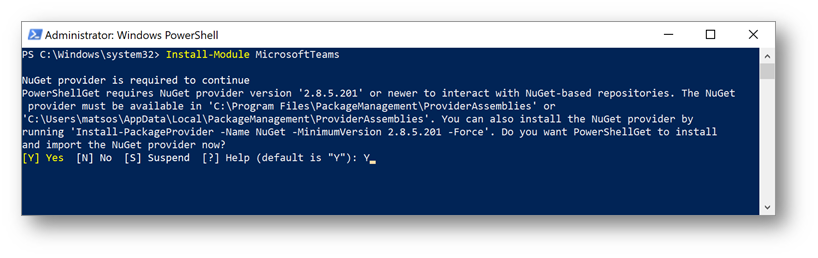
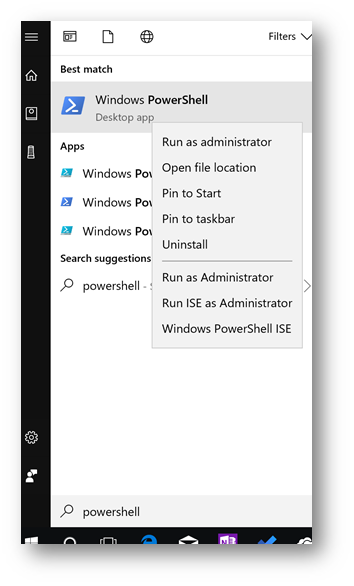
1. As an Administrator, type PowerShell in the start menu. Right-click Windows PowerShell, then select Run as Administrator. Click Yes at the UAC prompt.
2. Type the following within PowerShell and then press Enter:
Install-Module MicrosoftTeams
3. Type Y at the prompt. Press Enter.
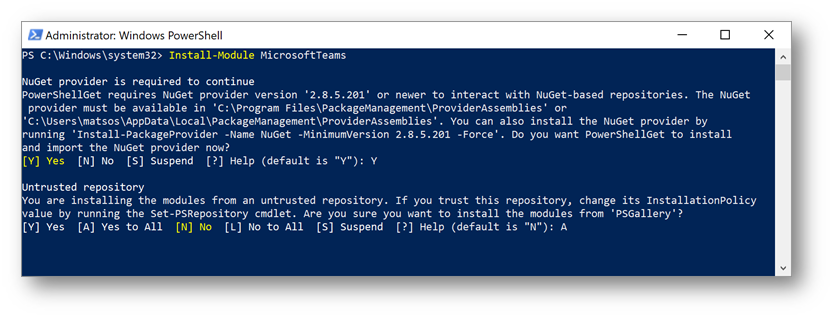
4. If you are prompted for an untrusted repository, then type A (Yes to All) and press Enter. The module will now install.
Once installed, you can now connect to Microsoft Teams.
Connecting to Microsoft Teams
1. Type the following and press Enter:
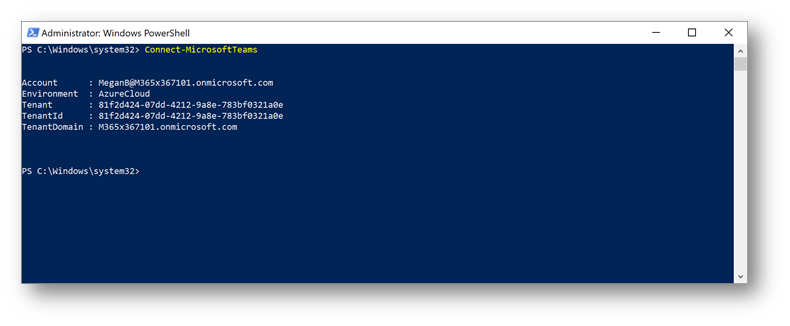
Connect-MicrosoftTeams
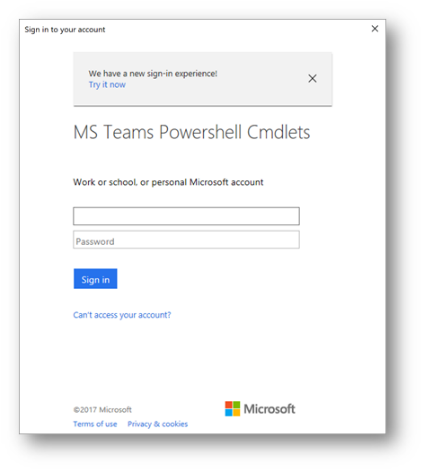
2. The Microsoft Teams PowerShell Cmdlets dialog box will now appear. Type in your Office 365 credentials. When done, press Enter.
3. The following will display once you are connected to the Microsoft Teams instant in your Office 365 tenant:
With these steps completed, you can now begin to run cmdlets, or scripts, against Microsoft Teams.
TIP: To see a full list of commands that are available, type Get-Command-Module MicrosoftTeams
In the following table, currently available commands in PowerShell are described below along with a brief description of what that command performs:
|
Command |
Description |
|---|---|
|
Adds an owner or member to the Team |
|
|
Connect to the Microsoft Team based on the provided credentials |
|
|
Disconnect from the Microsoft Team |
|
|
Returns all the teams that the user belongs to |
|
|
Returns all the channels for a Team |
|
|
Returns a Team’s fun settings |
|
|
Returns Team guest settings |
|
|
Returns a list of commands for Microsoft Teams |
|
|
Returns Team member settings |
|
|
Returns Team messaging settings |
|
|
Returns all users from the Team |
|
|
Creates a new Team |
|
|
Add a new channel to the Team |
|
|
Deletes a Team |
|
|
Deletes a channel and this will not delete the content from associated tabs |
|
|
Remove an owner or member from the Team Last owner cannot be removed from the Team |
|
|
Updates Team properties |
|
|
Updates Team channel settings |
|
|
Update GIPHY, Stickers and Memes settings |
|
|
Updates Team guest settings |
|
|
Updates Team member settings |
|
|
Updates Team messaging settings |
|
|
Updates the Team picture |
It is important to remember that Teams use the same ID as the Office 365 Groups they are a part of and when creating a Team, a group is automatically created. However, an Office 365 Group does not, by default, create a Team.
Microsoft Teams and PowerShell provides tools for the IT professional resulting in simpler administration with the flexibility to customize controls accessible to the end-user, control over current and future governance of Microsoft Teams, and creative possibilities of standardizing Team settings, creating a self-service tool on the back-end for end-users to create Teams but with controls for IT and creating a *.csv file when creating large teams and/or adding numerous members to an existing Team.
Microsoft Teams and PowerShell combine to provide a rich and powerful tool for the IT professional.
What is Microsoft Teams?
Built on the global secure cloud of Office 365, Microsoft Teams brings together people, content and conversations in a chat-based workspace on the desktop and on mobile, supporting iOS, Android, and Windows platforms. Microsoft Teams provides immediate, secure, and customizable communication with all team members whether on the go, in the cloud, in the office, a combination of any or all of these scenarios.
The Four Core Foundation
Microsoft Teams is built on Four Core Foundations, creating a digital workspace for collaborative teams resulting in high performance.
The Four Core Foundations are:
Join the broadest and deepest portfolio of collaboration apps and services for true team collaboration. To join, activate Microsoft Teams by going to the Office 365 admin center, clicking Settings>Services & Add Ins>Microsoft Teams. Welcome to flexible, instantaneous team collaboration from your desktop and your mobile device!