Ignite 2018 Announcements: SharePoint, Office 365, OneDrive, and Microsoft 365

At this year’s Ignite, Microsoft has focused their enhancements on combining the power of SharePoint and Microsoft 365, delivering to employees across the organization targeted digital content that pertains to their needs. Displayed visually, targeted for teams, and easily accessible, files can be accessed for live team collaboration.

Engaging Employees

The purpose of SharePoint is to share digital content across the organization, promoting collaboration amongst team members. SharePoint is already effective for sharing information for collaboration, but with audience targeting, knowledge, news, services, and corporate visions can now be delivered to the appropriate teams and their members. External articles can now be shared as news with news links, another great new feature. Visually, there are new page designs and new, powerful web parts, both which will help create stunning pages. Visual tags can be used to accent and highlight Organizational News.

Video Streaming

What better way than to engage your employees with video? Everyone loves to watch video, and with video becoming the preferred method of creating compelling news that captivates the audience, not only is Microsoft Stream the intelligent video service in Microsoft 365, but it is the driving force for video experiences in SharePoint sites and for live and on-demand events for Yammer, Microsoft Teams, and Stream. The mobile app, Microsoft Stream, features offline viewing when in areas of limited or no internet connection. Videos that you can engage in can be found across the organization on Microsoft Stream mobile.

Modern Portals

The digital experience for your employee can be fast, dynamic, natively mobile sites and pages, personalized, beautiful, social, and most importantly, actionable. There will be over a dozen new features that will give you the tools to make your sites and pages look amazing. The new portal web part will help create these experiences, including the ability to personalize views of recent sites, recent documents, and personalized news. For SharePoint portals, the new mega-menu and site footer are game changers. The new Yammer conversations web part will engage and build a community site that brings conversation and content together, encouraging learning and open sharing amongst your audience.

Hub Sites, Your Intranet, and Modern SharePoint

Hub sites is a great way to organize your intranet. With the roll-up events feed and hub join approvals, not only can you deliver information targeted to each team but managing hub sites can be done effectively and simply through SharePoint Admin Centre. In preparation of transitioning and replacing classic publishing sites and portals, the number of hub sites in a tenant has now been increased to 100. By migrating to modern SharePoint, your teams can now experience the new digital content in SharePoint.

Microsoft Teams and SharePoint

Microsoft Teams will be experiencing a new makeover as it morphs to encompass full capabilities of SharePoint document libraries. Create custom views, gain insights into file activities add and format custom columns, and pin files to the top are all capabilities that will be available. With the familiar files command bar, syncing files from Microsoft Teams to your PC or Mac is another added new experience.
With diverse needs, Teams must be able to create solutions to solve their needs. Building composite apps that can also be surfaced in Teams with modern SharePoint pages part-to-part communications. Data and custom-built SharePoint Framework web parts solutions can be shared by adding a SharePoint list as a tab in Teams. Additionally, one will be able to add Teams apps to SharePoint sites, bringing many more apps to your intranet.
Collaborating in a SharePoint team site, a new visual indicator of channel folders will provide information regarding the folders that are associated with channels in Teams. The new link to Teams in the site navigation will navigate you quickly to Teams.
Connect any SharePoint team site to Teams. With your site connected to an Office 365 group, and from your site, create your team with one additional click.
As you can see Teams and SharePoint are coming closer together, providing a platform where your Microsoft Teams and groups can collaborate without compromise on the intranet.

Collaboration – Office 365

Only with Office 365 and with files in the cloud, collaborators can work together and co-author in real-time across mobile, web, and desktop versions of Word, Excel, and PowerPoint.

Add Comments – OneDrive
Coming soon will be the ability to add comments with @mentions to all file types, including photos, CAD drawings, PDFs and more, in OneDrive. If permission is required to the document, an email notification with a link to the file to join in will be automatically be sent.

OneDrive – Files On-Demand
OneDrive connects you to all your files (personal and shared) in Office 365 whether you are on Windows, Mac, iOS, Android, or web. OneDrive Files-On Demand in Windows 10 allows you to view and open files inside File Explorer, including files from Microsoft Teams and SharePoint. By opening up inside File Explorer, no storage space is used on your device. The files remain in the cloud and can be accessed, edited, and shared as if locally stored. If you choose to download and store locally, the file can be used. Once you connect back to the internet, your edits will be automatically uploaded to OneDrive. The power of OneDrive is enormous, and based on requests from UserVoice, OneDrive has now crossed platforms to Mac. OneDrive Files On-Demand for Mac is now available for consumer and commercial customers.

AI and Content Collaboration
Machine-learning and AI can aid in increasing productivity, making informed decisions, and keeping files more secure, and by combining AI with content stored in SharePoint and OneDrive for Business, these goals are achieved. In addition, video and audio transcription services will be coming soon to SharePoint and OneDrive along with scan and metadata capture with the OneDrive mobile app.

Deployment
The new SharePoint Admin Centre will allow you to manage all sites, including group connected team sites, hub sites, and communication sites. Deploy with confidence.

Recovery
Personal files are protected from malicious attacks and file corruption with Files Restore for OneDrive which provides the capability to move a user’s Desktop, Documents, and Pictures folders from their Windows device into OneDrive.
This same protection is now available for shared files in SharePoint. A self-service recovery solution, administrators can restore files from any point in time from the last 30 days with File Restore for SharePoint.

SharePoint On-Prem

For SharePoint On-Prem customers, SharePoint Server 2019 will be available in October this year and will offer modern user experiences, support for SharePoint Framework, OneDrive Files On-Demand, and improved hybrid integration with Office 365. The SharePoint Migration Tool is free and highly recommended for moving complete on-premises SharePoint sites, including data from libraries, lists, and file shares.
Ignite 2018: OneDrive Announcements

It was an exciting day for sure yesterday with many announcements about OneDrive. Here is my take on the OneDrive road map.

Connecting you from any device, Office 365 provides access to personal and shared files for team collaboration. Incorporating artificial intelligence will not only increase productivity, but real-time collaboration can take place across all platforms and operating systems. Security is on the forefront as new security and compliance capabilities are being implemented to keep your data safe from threats and attacks.

With new enhancements to Office 365, OneDrive Files On-Demand for Windows has cross-platformed to Mac: OneDrive Files On-Demand for Mac. Office Insiders are the first ones that this has been released to.


OneDrive Files On-Demand for Mac


Storage space is always a consideration, but with OneDrive Files On-Demand for Mac, this is minimized with the ability to locally store the files that you need while having access to all your files. All files can be found in Finder, and they work like all other files on your device. There is no need to change the way you work. OneDrive Files On-Demand for Mac is available for consumer and commercial OneDrive customers, and like One-Drive Files On-Demand for Windows, it operates across all personal, work, and shared files in Office 365.

Accessing OneDrive On-Demand for Mac

Accessing your folders in OneDrive On-Demand for Mac begins by choosing the OneDrive folder in Finder. Note that this folder occupies 0 bytes of storage on the disk. All documents in this folder are stored in the cloud.

How do I know if my document is stored locally or in OneDrive? New status icons in Finder provides quick visual cues as to where the file is stored. Folders and files in OneDrive On-Demand are stored in the cloud until you download and save locally. Why store locally? Perhaps at times, you will need to access the file when you cannot connect to the internet. In preparation for this event, choose the file or files that you would like to download locally. Right-click your selection and then choose Always keep on this device. Your file or files are now stored locally, ready to be accessed without an internet connection.

To access and work on your OneDrive On-Demand files, double-click on the file in Finder. You can also open the file from within an app. The file will automatically download and become locally available but will not be stored locally unless you chose to do so, thereby saving storage space.

End-user training is simplified as OneDrive On-Demand for PC and OneDrive On-Demand for Mac functions and works the same across both platforms. Those users who have had experience with PC will find it to be a natural transition to Mac.


IT Admin Controls


Not only has end-user experience been greatly enhanced with OneDrive On-Demand for Mac, IT admins and the organization will also benefit. Previously, a change in a file in a shared library on SharePoint on Mac automatically synced to all devices that were connected to that library, even if the collaborator was not active. With OneDrive On-Demand for Mac, continuous syncing with non-active collaborators is eliminated with the management options available to IT admins when deploying. By eliminating continuous syncing, network bandwidth is reduced. Management options include enabling Files On-Demand by default, select folders or files to always be locally available, and block apps from downloading files. As exciting as this is, Files On-Demand for Mac is currently available only for Office Insiders on MacOS Mojave or by running a simple script. For the public, it will be rolled out in the coming months.


Dark Mode for OneDrive

Another new and exciting OneDrive feature for MacOS Mojave is Dark Mode. Fully supported for OneDrive, Dark Mode works cohesively with the built-in apps for Mac. When Dark Mode is enabled, OneDrive will change to a dark theme across all user interfaces, including Finder and the OneDrive Activity Centre.


Files On-Demand Storage Sense Integration

Being released with the new Windows 10 in October, Files On-Demand will be integrated with Storage Sense. With the integration of Storage Sense into Files On-Demand, disk space can be automatically freed up by making older, unused, and local OneDrive files online-only. Your files will be safely stored in OneDrive while your files will be represented as placeholders on your device, a process known as dehydration. Once you have an internet connection again, the online-only files can be used just like any other file.

Collaboration, sharing, and accessing files has never been more powerful with the cross-platform compatibility of Office 365 and Files On-Demand for PC and Mac. Local storage space is freed up with storage in OneDrive but the ability to store locally on your device ensures that files you need to access without an internet connection are still accessible. And with Storage Sense integrated with OneDrive, local storage space is automatically freed up while making local OneDrive files online-only. OneDrive and Files On-Demand continue to strengthen Microsoft’s vision of collaboration on all devices and platforms.

New OneDrive for Business capabilities announced SPCNA


You asked. You voted. You shall receive.

Microsoft has offered to listen to your feedback through a public, user driven forum aptly named OneDrive UserVoice (https://onedrive.uservoice.com/forums/262982-onedrive/filters/top). If you have a suggestion or have a request for an improvement or feature, this is the place to suggest it. In addition to requesting, you also have the capability to vote on other suggestions that have been submitted. As a collective voice, OneDrive UserVoice became the collaborative, driving force for the new capabilities that were announced at the SharePoint Conference in North America for OneDrive for Business.

Scan and Photos Experiences on Mobile

Scan Experience: a dedicated icon in the tab bar allows easier access to the built-in scan functionality. Annotating, adding multiple pages, and changing the destination folder or file name can now be done in the capture experience.

Camera Upload: photos and videos captured on your local camera roll in iOs and Android platforms are now automatically uploaded.

Sharing and Collaboration Security

Password Protected Links: Sharing a file or folder with your collaborators will have an additional level of security with the ability to not only set a password, but the recipient will also require a password. This will prevent accidental sharing of information if your recipient forwards or shares the link. Password protected links are unnecessary if secure external sharing is applied.     

Block Download: View-only links allow you to share Office documents in the cloud but with block download, users are prevented from downloading files for the purpose of keeping and storing them offline.

Deployment and Onboarding

Known Folder Move: Administrators will have the capability to seamlessly move folders such as Documents, Pictures, and Desktop, from their PC to OneDrive. This is supported during initial account configuration and for post-deployment migration.

Team Site Automount: Administrators can automatically connect and synchronize specific SharePoint Team Sites as part of the process of deployment or upgrading to OneDrive.

Sharing Controls

External Sharing Reports: Site administers will be able to see all the files that are being shared on their site, including files that are being shared through secure external sharing and anonymous links with this report. By setting filters, the data can be further refined for capture and can be exported to Excel or Power BI. This data report can then be used to analyze end user patterns, including sharing usage. These reports can also be imported into third-party management software as well as security software.  

Customization of Sharing Emails: For outbound and emails that are being shared with recipients, Administrators will have the ability to brand these emails with their company logo; however, Azure Active Directory Premium P2 is a requirement for this functionality.

Transfer Ownership for Deleted Users: A user’s ownership of their OneDrive files is currently transferred to their manager when they leave the organization. Soon, Administrators will have the ability to transfer the ownership to any individual in the organization.  


When does this all roll out?

These are truly exciting features that have been announced! The various stages of the updates and rollout dates can be found on the Office 365 Roadmap (https://products.office.com/en-US/business/office-365-roadmap?filters=#) and I suggest that you check here often as release dates have not yet been announced.     

Versioning Update for SharePoint Online and OneDrive


The Importance of Version Control

Version control, or versioning, allows a file or item to be restored to an older state that is chosen from the version list. With versioning enabled, items and files in the SharePoint list or library are protected from unwanted, miscalculated and inadvertent errors. 

Applications of Versioning

Track Version History: version history discloses information about when an item or file was changed, by whom, what was changed, and any comments that were made when files are checked into libraries

Restore Previous Version: file or items that are corrupt can be restored from a previous version. A previous version can also be restored if mistakes are made in the file or item, or if the previous version is more akin to what is wanted. The restored version becomes the current version

View Previous Version: Before reverting to a previous version, there is the capability to compare two versions within a Microsoft Office document, such as Word or Excel, to determine the differences between the two documents without overwriting the current version.    

What is New with Versioning

Versioning is becoming more crucial as software and technology advances, as exemplified by the evolution of AutoSave and Restore Your OneDrive. Leveraging versions allows greater confidence for users and administrators alike while delivering better user experience.

In line with development, Microsoft recently announced they will be enabling versioning on all Document Libraries in team sites in SharePoint Online and OneDrive for Business with a default of retaining a minimum of 100 major versions. If your library is set to retain 100 or more major revisions, then this update will not affect you. However, existing libraries that are set to retain less than 100 major versions will be updated to meet the minimum criteria of 100 events.

Roll out will begin in June for first release customers while remaining tenants worldwide will receive the update in July. The rollout is expected to be completed by the end of July.

Who is Impacted

As mentioned, all team sites for OneDrive for Business and SharePoint Online will be affected. Will you be impacted if your team sites are not connected to an Office 365 group? The answer is “yes”, the rollout will update to the 100 minimum major revisions if you are not set to be 100 or above.

What if we are On-Prem for SharePoint? Will this affect us? The answer is “no”, this will have no impact on your SharePoint document libraries.   

What Else Changes

Once the update is rolled out to your tenant, site owners and administrators will not be able to set a versioning limit of less than 100. In addition to this, they will not be able to disable document library versioning as it will now be standard practice to have it enabled.

What About Storage Space?

Prior to the redevelopment of the flat collection sites with Office 365, versioning of document libraries required large storage sites. This, in turn, created issues for the allocation of storage for site collections. The result of limited storage was the stringent, low versioning limit. With the new approach of flat collection sites, storage is less of a concern than it was in the past; however, with audits, the speed of change in technology, and the increase in collaboration between teams and individual members, errors and corrupt files can be incurred, which places a priority on the ability to restore and recover these files and items. Hence, the rollout of the new higher, minimum versioning limit of 100.    

OneDrive and SharePoint Multi-Geo


Office 365 Multi-Geo provides an answer for many multinational companies who must meet local policies regarding local data residency. Or perhaps there are different levels of need, such as one office requiring local data residency while another may not. Multi-Geo enables a single Office 365 tenant to span across multiple Office 365 datacentre geographies (Geos) while addressing the needs of clients who may be required or need to keep data locally. The greater need that is addressed with Office 365 Multi-Geo is the ability for international satellite offices to collaborate with each other on a global scale.

Multi-Geo affects two types of data:  user attached resources, such as user mailboxes and OneDrive; and shared resources, such as SharePoint Team Sites and Office 365 Groups, which includes shared sites and shared mailboxes.

Multi-Geo is available in 3 geographical locations: North America, Europe and Australia. By enabling your tenant to be Multi-Geo, you could extend your tenant into nine potential geos. These nine geos include Asia-Pacific, Australia, Canada, European Union, India, Japan, UK, US, South Korea. Additional geos will be launched in the future, including France. At the time of writing, services available in Multi-Geo include Exchange Online (in preview), OneDrive for Business (in preview), and SharePoint Online (in development).

Because Office 365 Multi-Geo is a single tenant spanning across multiple geos, rolling out globally is very straightforward in the Global Admin Centre. Once your tenant is Multi-Geo enabled, open PowerShell where you will specify the:

ServiceType – which service do you want to extend such as Exchange, SharePoint or Skype For Business

Location – where you want to extend the content to (which geo will you extend to)

InitialDomain – what content do you want to extend to the geo. Because data in SharePoint and OneDrive, as it is provisioned, must be addressable by a URL, the InitialDomain specifies the URL for the content to reach the extended geo.  

Once executed, the system will refresh and update the URL for all affected users in the extended geos.  

Office 365 Multi-Geo: Common Foundations and Concepts

There are 3 basic concepts for the Admin and these are:

AllowedDataLocation: tenant level property that specifies the allowed geos for Office 365 applications. New and additional geos will not show up automatically and this setting will need to be set up initially or when Microsoft releases new locations.  

PreferredDataLocation (PDL): user-level property that specifies the location of Mailbox and OneDrive with one PDL assigned per user. On the user objects, configure PDL in Azure AD. This information will then flow into Exchange and OneDrive resulting in users mailboxes and OneDrives to be placed in their respective locations.

Azure AD Connect Tool: used to configure PDL, for On-prem AD, on synchronized user objects.

Exchange Online Multi-Geo: Mail & Calendar

Multi-Geo for Exchange Online has been in development for many years and had been implemented since it was first developed. Based upon these capabilities in Exchange Online, it is continuing to evolve. In Exchange Online, the global front-end service, single namespace, allowed service access via outlook.office.com and already multi-geo being the point of connection for the client to Exchange Online. With Office 365 Multi-Geo, you can now select where the users’ data is stored in the background.

Auto-discovery of mailbox location was implemented in On-Prem sites whereby Outlook automatically connected a user to their mailbox. In Office 365 Multi-Geo, auto-discovery automatically connects the user’s mailbox when they are moved from one geo location to another. For an end user, this will be like magic as this functionality runs in the background and is invisible to them.

Having a central site with multiple geos requires a standardization such as a single view Exchange Tenant Configuration. Stored in the Exchange Directory, the recipient information and tenant configuration ensure that the view of the tenant configuration is the same regardless of which geo you are accessing it from.

There are several Admin advantages with Multi-Geo when it comes to mailboxes. First, new mailboxes can be provisioned directly into a specified Geo. Second, existing Office 365 mailboxes can be moved into a specific Geo without disrupting the end user. Lastly, existing Exchange On-prem mailboxes can be on-boarded to a specific Geo.

From the end user’s perspective, Office 365 Multi-Geo is mostly invisible for both mail and calendar.  

OneDrive Multi-Geo: Files

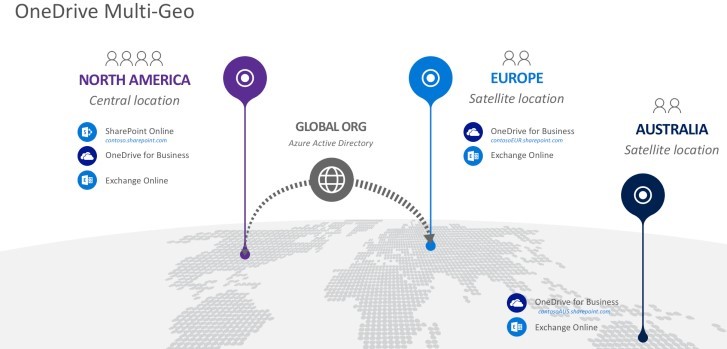
OneDrive Multi-Geo

What is a OneDrive Multi-Geo? The central location for the satellites will have SharePoint Online, OneDrive for Business, and Exchange Online. The structure for the whole organization includes one global Azure Active Directory. Having a single tenant allows management of all users for the whole organization, regardless of where they are located. For each satellite location that the central location extends to, access to OneDrive for Business Multi-Geo and Exchange Online is given when the user is assigned their mailbox and OneDrive.

OneDrive Multi-Geo: Admin Centre

There is a separate OneDrive Admin Centre for each Geo because OneDrive is URL based. In the OneDrive Admin Centre, you will be able to see whose OneDrive is where, which will streamline the unlocking for the rollout of OneDrive. Another advantage of having separate OneDrives per Geo is the management of OneDrive settings. By having separate Admin Centres, the settings can be specified for each Geo.

In terms of licensing and other aspects of managing user aspects, one can access the Global Office 365 Portal Centre. Here, user-specific aspects such as passwords can be managed.

OneDrive Multi-Geo: Geo Users

The Geo user does not know that they are a Multi-Geo user. Once a user launches their app on the browser, they are automatically redirected to the Geo that they have been assigned to by the Admin. For the mobile client, Office Client, and OneDrive sink client, the user only needs to enter their email address. The Client is Geo-aware and will automatically connect the user to the corresponding OneDrive in the correct Geo.

Office 365 Multi-Geo: Delve, Profile, and Unified Auditing

How does the Delve experience look like when there are multiple users collaborating from different Geos? A user will see all the signals from all the users across the Geos, including their own Geo.

From a security compliance perspective, Unified Auditing allows the Admin to see a single unified view of all the activities that have occurred in your Multi-Geo tenant, regardless of what the user has done or where the content resides. The activities log can be exported or filtered according to the data that you require.

SharePoint Online Multi-Geo: Sites and Groups

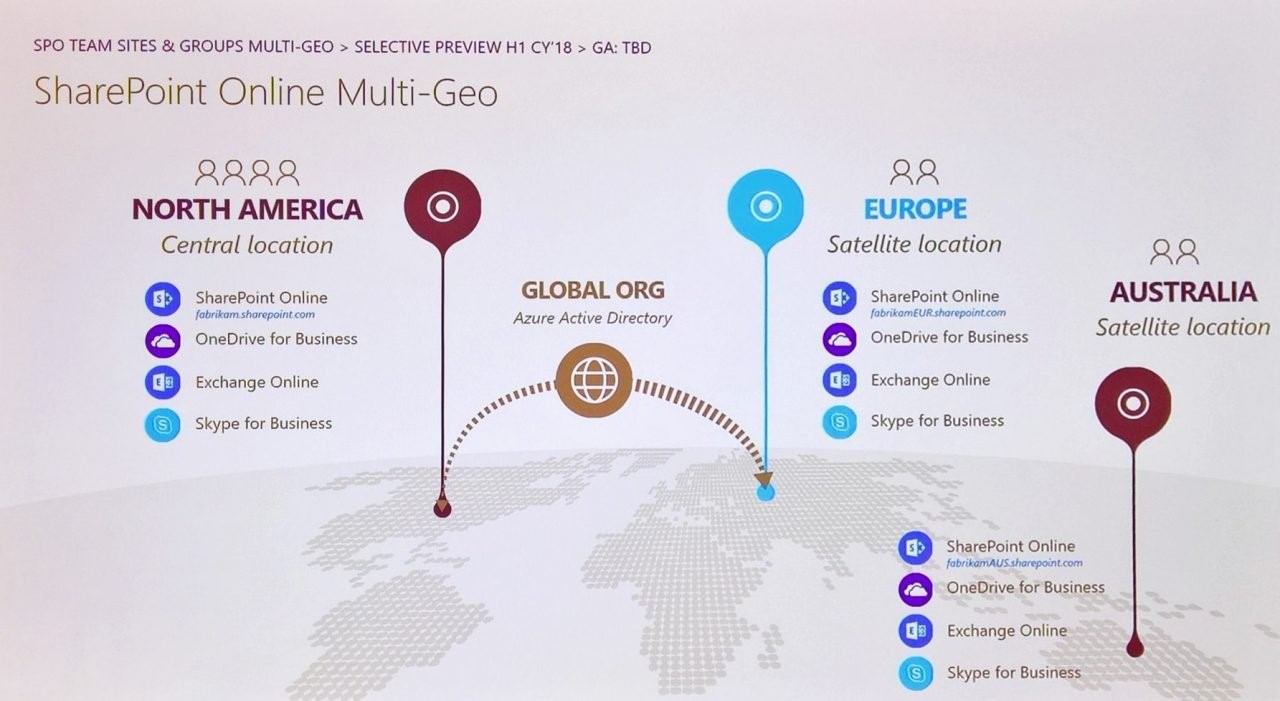
The major difference between OneDrive Multi-Geo and SharePoint Online Multi-Geo is that SharePoint Online Multi-Geo satellites will have the full SharePoint Online experience. This includes SharePoint Online, OneDrive for Business Multi-Geo, Exchange Online and Skype for Business. Team Sites and Office 365 Groups can be created in the satellite Geos in SharePoint Online Multi-Geo.

SharePoint Online Multi-Geo

SharePoint Online Multi-Geo: Admin Centre

Each Geo will be having its own Admin Centre. In the Admin Centre, you will be able to create Team Sites in that particular Geo. To create a Team Site in a specific Geo, you must first navigate to it and then create the Team Site. Otherwise, it will create that Team Site in whichever location are you currently in.

Another consideration is the sharing policy for data residency. As each Geo location may have its own requirements for data residency, the sharing policy can be configured for each Geo independently of the central location as well as with other satellites. If the same policy is to apply across all Geos, then in PowerShell you have the capability to push this policy across all Geos.

Each Geo is identifiable by a user, an Admin, or a compliance officer, based on its unique URL. Because you will choose the namespace for the URL for your SharePoint Admin Centre, it is important to consider how and what you will name this URL.

Data Loss Prevention (DLP) Policies can be created and applied to specific Geos. To These types of policies can be created by going to the Security Compliance Centre. Once created, they can then be applied to a specific Geo’s OneDrive Site, SharePoint Site or mailbox in that site. Each Geo can have its own security compliance policy.

Microsoft has continued to develop and evolve Office 365 Multi-Geo by integrating IT Admin best practices, shared services, and ensuring an invisible and seamless product for end-users. Office 365 Multi-Geo delivers OneDrive as well as SharePoint Online with a single global tenant, which provides centralized control over satellite locations, and each Geo has the capabilities to be customized for its local policies on data residency and policies. Office 365 Multi-Geo is meeting the demands of on the go collaboration across continents and its users.

OneDrive Part Two: Additional Ignite 2017 Announcements


At Ignite 2017, many new and innovating announcements were shared, but most notably, were the many new features for OneDrive. In my previous article, OneDrive Part One: Files On-Demand, we examined the many new features and advantages of Files On-Demand. In this article, we will review the many other new features that were announced.

These new features include silent sync auto-account configuration with ADAL, Microsoft 365 powered device with OneDrive, multi-geo, updated OneDrive Admin Center, support for workflows via Microsoft Flow, simple and secure external sharing of documents without a Microsoft account, support for on-prem customers with Windows and Android App, support for NGSC (next generation sync client) in SharePoint 2019.   

Silent Sync Auto-Account Configuration for OneDrive with ADAL

Silent sync and account configurations for OneDrive are now supported by Microsoft Azure Active Directory Authentication Library. Silent Sync will automatically configure OneDrive during a new device provisioning. In addition to this, for a new user being added, OneDrive is automatically set up without any interaction of the new user. By automatically setting up a new user, there is now insurance that all users will have access and the capabilities to leverage OneDrive.  

Microsoft 365 Powered Device with OneDrive

What is a Microsoft 365 Powered Device with OneDrive?  It is a modern device running Office 365 ProPlus and Windows 10 and is managed with Enterprise Mobility + Security (EMS).

Why is this exciting?  The traditional way of deploying a device was purchasing the device, having it shipped to IT where it is then imaged and prepared for the end user. Once ready, it is then shipped to the end user, which, quite often, took several days. With a Microsoft 365 Powered Device with OneDrive, the device can now be shipped directly to the end user, who can then, with great anticipation and excitement, open the box and take out the laptop/desktop/mobile device, and begin immediately using it for work after answering a few questions after turning it on.  After these questions are answered, Windows Autopilot (integrated with Azure AD Premium and Intune) will automatically configure the new device as a new Microsoft 365 powered device based on unique corporate IT and user needs.  The best part – the end user’s files, apps, emails, and preferences are automatically deployed while enforcing ITs security policy. In addition to all this, the system is always up-to-date with latest security and protection as well as continually updated services which provide a consistent, rich, and valuable content to the end user. All of this is achieved over the cloud, without physical contact between the administrator and device.

A Microsoft 365 Powered Device with OneDrive has taken what took days to deploy to only minutes to deploy – how cool and exciting is that?!?

Support for Synchronization of Encrypted Libraries

Libraries encrypted with Information Rights Management (IRM) or Digital Rights Management (DRM) are fully supported with OneDrive syncing. Why is this important?  Rights Management is the prevention of printing, forwarding, and copying of sensitive information by unauthorized people by restricting permission access. The access and restrictions are enforced, even if the information is received by unintended recipients as the access permission is stored in either the workbook, document, presentation or the email message itself. This access permission must be authenticated against the Rights Management server.  In SharePoint, downloaded files not only must be authenticated, but they are also encrypted and can only be opened by users that meet the requirements of the Rights Management policy that is set in the SharePoint library.

External Sharing without a Microsoft Service Account

The capability to share information externally with those who do not have a Microsoft service account (MSA) can now be accomplished with a simple and secure method.  You can now create and provide a one-time use verification code which grants external users access to specific content.  A limited time, single-use, verification code link is securely emailed to the external recipient. After opening the email, entering, and submitting the verification code, access to files and folders is then granted to the external recipient without the need for them to create and/or maintain an MSA as they have verified that they are the account holder of the email address. As an added layer of security, IT administrators are able to specify how often external recipients must re-verify their email address as well as obtaining a new verification code. 

User Experience Updates

OneDrive Modern Experience

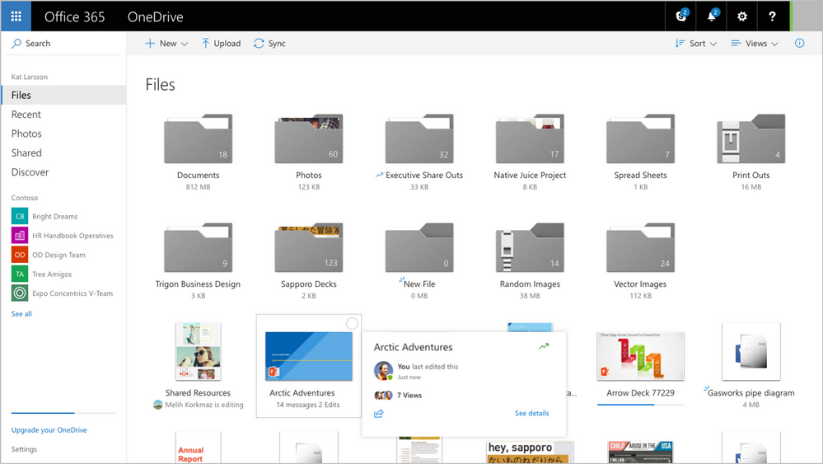
An update to the OneDrive web UI has resulted in delivering visual information quickly and concisely with one glance. If there are documents in the folder, there will now be a slip of paper inside the folder and the folders now sport a number count of items in it.  New items will generate a notification to alert that there is a new item while the hover panel not only provides stats but it now also provides the opportunity to share directly from the hover panel. The People Card and Info Pane quickly provide information as to who has accessed content, what content has been shared, and who has not accessed the content.  OneDrive is now faster, more intuitive, and highly responsive, resulting in a streamlined, efficient and maximized workflow process.


Seamless Sharing in Office, Windows, and Mac

Office 2016 will reflect the updated sharing UI whereby the sharing of Mac, Windows, and the Web have been standardized and will be seamless across platforms. 

Multi-Geo

Multi-Geo addresses data residency and compliance for global companies.  In SharePoint and OneDrive in Office 365, the multi-geo capability will provide a choice of geographical locations to store and manage your data.  One or more satellite geo locations will connect to the main Office 365 tenant, the default location.  In other words, Multi-Geo allows a single tenant to span across multiple geo locations.

Service Level Encryption with Customer Key  

The customer key service is a new layer of security that provides you the control to encrypt and/or decrypt individual encryption keys used to encrypt your cloud storage services for OneDrive and SharePoint in Office 365.  The customer key service encryption allows you to revoke or change access to these keys, effectively preventing Microsoft from accessing this content.  This added layer not only hands you control of your data but also allows you to meet the compliance and specification policies of your company. 

OneDrive Admin Centre

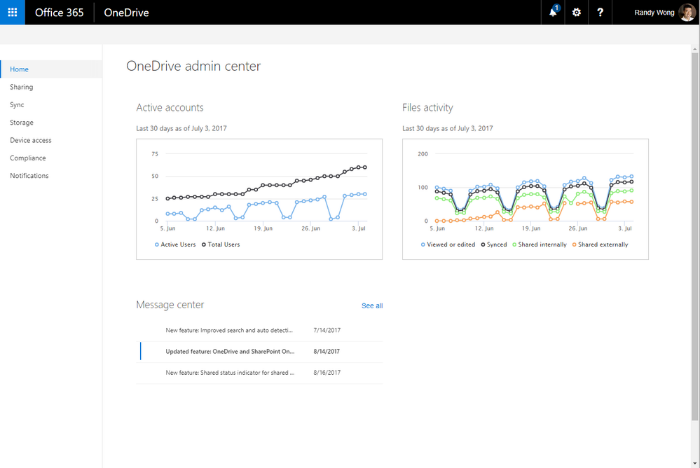
OneDrive Admin Center

In the OneDrive Admin Centre, information regarding active accounts, file activity, and OneDrive Message Centre are all available on the OneDrive admin console. 


Files Restore

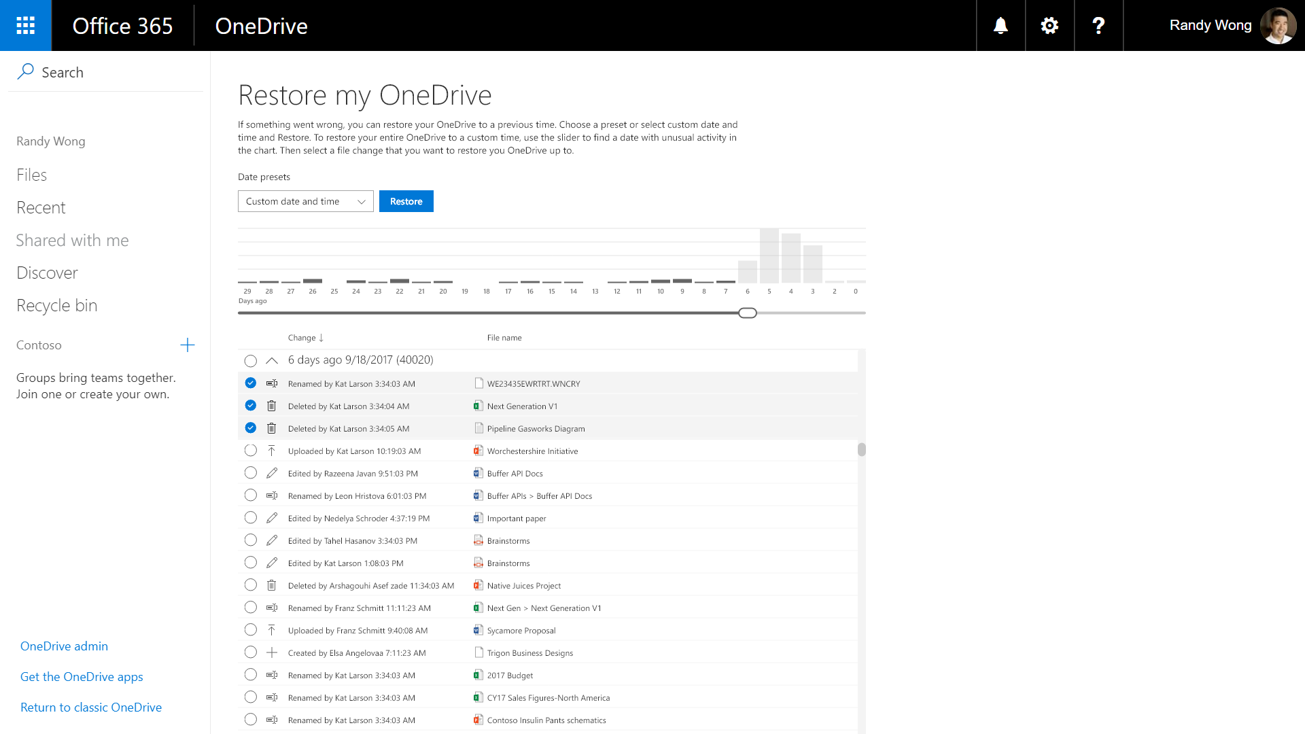
Disaster planning is imperative, and with Files Restore, recovery from disastrous events such as corruption, unexpected data loss or mass deletions, can be performed from this self-service.


OneDrive File Restore

Additional highlights include:  support for workflows in Microsoft Flow in OneDrive; a self service migration toolkit for those who would like to migrate from share drives or other cloud-bases services to OneDrive on their own; implementation of new ux for mobile clients for ease of sharing and managing files on the go; opening a file in OneDrive web or a shared link to a Word or PowerPoint file will now open right into edit mode of that app; support for clients on Android platforms for OneDrive On-Prem clients; zip files can now be viewed on the web allowing you to see what is inside so that you can choose the files you would like to extract; sync client has now been integrated into Mac Office as part of the installation process; and, the OneDrive sync client released for SharePoint 2019 is now supported.

As you can see, Microsoft continually innovates, updates and adds facets to OneDrive, SharePoint and Office 365 that continually provide better cohesion between platforms, stronger collaboration tools and increased efficiency in the workflow for end-users.

OneDrive Part One: Files On-Demand


At Ignite 2017, many exciting and new announcements were shared alongside visuals thrown up on the big screen.  Many of the MS products have been enhanced, and OneDrive is one of them.

These upgraded or new features for OneDrive include Files On-Demand, silent sync auto-account configuration with ADAL, Microsoft 365 powered device with OneDrive, multi-geo, updated OD Admin Center, support for workflows via Microsoft Flow, simple and secure external sharing of documents without a Microsoft account, support for on-prem customers with Windows and Android App, support for NGSC (next generation sync client) in SharePoint 2019.   

OneDrive Files On-Demand

One of the most exciting announcements is the OneDrive Files On-Demand capability.

Turning on Files On-Demand will allow you to see, in File Explorer, thumbnail files without having to download the files.  The ability to access all your files offline is not only convenient, but it also saves storage space on your device.  The creation of new online files, or ones created on another device, will appear as online-only files. Once connected to the internet, these files will be accessible like every other file on your device.

There are additional advantages to Files On-Demand including the flexibility to set files or folders to always be locally available, the ability to see information about files including if it is shared with others, and most importantly, ability to see thumbnails of files even if the required application is not installed to open it (over 270 file types are recognized) are all additional advantages with Files On-Demand. 

A handy visual tag is placed on the bottom left of each thumbnail file which indicates its status of availability in File Explorer. The following chart easily explains each of the scenarios:

Online Only files
  Online-only files


Online-only files don’t take up space on your computer. You see a cloud icon for each online-only file in File Explorer, but the file doesn't download to your device until you open it. You can’t open online-only files when your device isn’t connected to the Internet.

Locally available files
  Locally available files


When you open an online-only file, it downloads to your device and becomes a locally available file. You can open a locally available file anytime, even without Internet access. If you need more space, you can change the file back to online only. Just right-click the file and select “Free up space.”

Available file
  Always available files


Only files that you mark as "Always keep on this device" have the green circle with the white check mark. These always available files download to your device and take up space, but they’re

Using and Turning on Files On-Demand

Files On-Demand works with all files, whether work or personal, that are accessed from either OneDrive or SharePoint Online team sites. Compatible with all current apps, including Windows desktop and Windows Store apps. 

The following steps will turn on Files On-Demand:

  1. Sign into OneDrive on your device;
  2. In the notification area and at the far right of the taskbar, right-click on the white or blue OneDrive cloud icon. Select Settings;


    OneDrive SyncClient with blue cloud and white cloud icons

Missing the blue or white cloud OneDrive icon in the notification area? Click the caret “^” (show hidden icons icon) to show the OneDrive blue or white cloud icon. If it appears, complete steps 1 and 2.

Still missing the blue or white cloud OneDrive icon in the notification area? OneDrive may not be active on your device.  To run OneDrive on your device, select Start on the bottom left corner of your taskbar. In the search bar, type “OneDrive”.  Select OneDrive from the search results.

  1. Next to Save space and download files as you use them on the Settings Tab, check off the box. This will now enable Files On-Demand.  It is important to note that the settings for Files On-Demand are unique to each device and as such, this process will have to be done on each device that you want to have Files On-Demand activated. 

Marking a Folder or File for Offline Use or as Online-Only

  1. On the selected folder or file, right click; and
  2. Choose either Free Up Space or Always keep on this device. Remember that new files or folders that are created online appear as online-only.  Also, files that were created on another device will appear as online-only.  Appearing online-only ensures maximum space is saved.  It is also important to note that a folder marked as “Always keep on this device” will have all files in that folder download to the device as always-available files.  Note that individual folders within that folder can be marked as available if the folder is online-only.  

Hiding Folders on Your Device

For privacy reasons, such as having personal files on your work computer, you may not want a folder to download to certain devices.  In these instances, you will want to hide a folder on your device.  To hide a folder, follow these steps:

  1. At the bottom right of the taskbar is where the notification area is located.  The OneDrive icon is represented by a blue or white cloud. Double click on this icon to open OneDrive;

A screenshot showing the cursor hovering over the blue OneDrive icon on the taskbar, with text that says OneDrive - Contoso.

Troubleshooting:

  • If the OneDrive icon does not appear in the notification area, then click the caret “^” to expand the hidden icons.
  • If the icon appears, complete steps 1 and 2.
  • If the OneDrive cloud does not appear, then this is an indication that your device is not running OneDrive. To initiate OneDrive on your device, select Start on the bottom left corner of your taskbar. In the search bar, type in “OneDrive”.  From the search results, select OneDrive.  Your device will now run OneDrive.
  1. Select the Settings gear in the Activity Centre;
  2. Choose Folders next to the location where you want to choose the folder; and
  3. Find the folder that you do not want to be downloaded onto this device. Clear the checkbox next to this folder. This folder will no longer be downloaded onto this device. 

You will need to repeat the above steps on each device that you do not want the folder to download to as settings for Files On-Demand are unique to each device.  

Big SharePoint, OneDrive and Office 365 Announcements


This year’s Microsoft Ignite unveiled exciting new products and innovations that span across its entire business software and cloud spectrum.  Focusing on empowering the modern workspace, Microsoft has made advancements in management, security, and intelligence as well as recognizing new groups of users. 

Office 365 targets two new groups of users through its two special packages. The first is for education, Microsoft 365 Education, and the second, Microsoft 365 F1, for first-line workers.

Microsoft 365 Education

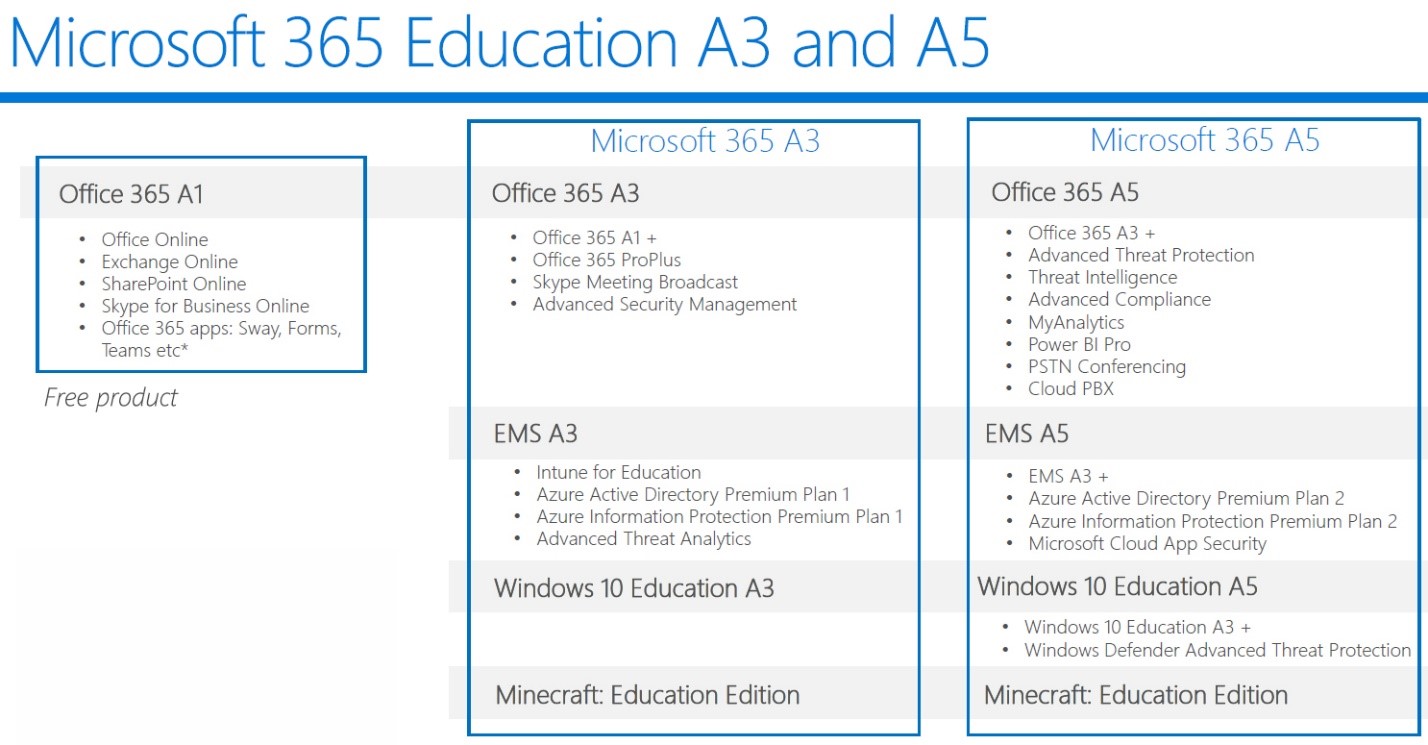
Microsoft 365 Education provides the tools for students, faculty, and staff to create and work together securely in the classroom.  Office 365 brings its productivity applications and combined with Enterprise Mobility + Security, Minecraft: Education Edition and Windows 10, students and teachers alike have a powerful system to create, learn and grow together in the classroom.  Microsoft 365 Education is offered in three different plans as Microsoft 365 A1, Microsoft 365 A3, and Microsoft 365 A5.  The fourth plan for non-profit organizations is in the works.  There are price point differences between the plans, and the differences between each are compared below.

Microsoft 365

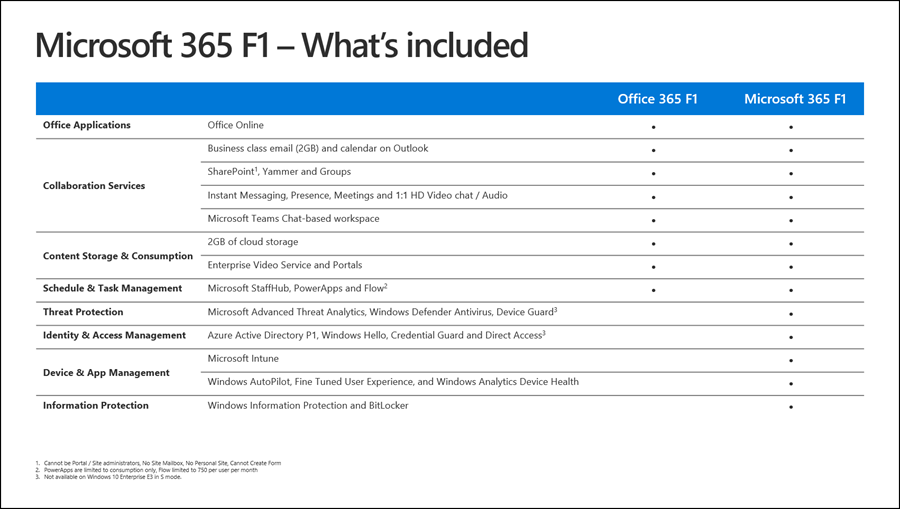
Microsoft 365 F1

Who are first-line workers?  Any staff who has direct contact with a customer while providing a service or care to the customer is a first-line worker. First-line workers account for nearly 2 billion workers worldwide. Microsoft 365 F1 promotes the growth and development of the community and culture amongst first-line staff. It also trains and upskills employees, digitizes business processes, delivers real-time expertise with minimized risk and cost. Many first-line workers work shift work and to help manage their schedules, Microsoft 365 F1 offers a new feature – StaffHub. Combined with Windows 10, front-line staff is now able to stay connected, automate device deployment and manage single-purpose devices. In response to the need for devices for first-line workers, Microsoft is offering through its OEM partners HP, Lenovo, and Acer, streamlined and secure devices loaded with Windows 10S.  Through its OEM partners, the total cost of ownership is reduced, and these select entry-level devices (HP Stream 14 Pro, available in October, and the Lenovo v330, available in February) will provide cloud-based identity and management for the first-line environment.

Microsoft 365 F1


Office 365 continues to evolve, enhancing and supporting employee creativity.  With the emphasis changing from routine tasks to creative problem solving, Office 365 is adapting, providing users the tools to express their ideas effectively and the ability to build upon the work and expertise of others, resulting in the creation of compelling content. 

The Improved Excel

Harnessing the abilities of AI and combining it with Excel has resulted in a powerful, sleek, and fresh Excel that will understand new data types, beyond numbers and texts that are currently recognized, and augment these new data types based on public and enterprise information.  For example, Excel will now recognize that “India” is a country and the acronym “MSFT” is a stock.  Also, releasing in the spring of 2018, Insights, a service reserved for Office Insiders, will derive insights from complex data using AI to find and recommend patterns. 

Searching with Results

Searching capabilities can now be initiated from SharePoint, Office.com, the Windows taskbar as well as Bing for Business.  From so many sources to initiate your search, it becomes simplified to find your information from across your organization and beyond.  Whether you are searching for a person, content or a site, Microsoft Graph powers the engine and provides consistent and personalized results.

Linking in with LinkedIn

From within Office 365, you can now view LinkedIn profiles in Microsoft apps and services.  Currently rolling out to first release customers, this ability provides rich insights about the people who you work with, whether they are within your organization, or external to your organization.

Threats and Protection

With all the new and enhanced features of Office 365, security and protection have been addressed through advanced threat protection, including features that address phishing, impersonation and domain spoofing. Preventative measures including multi-factor authentication, including third-party access, expansion of conditional access capabilities, encryption of emails and documents when using consumer email services such as Outlook.com and Gmail, protection of information (detect, classify, protect and monitor your data wither it is stored or shared), and applying compliance measures as per regulations.  

SharePoint and OneDrive

The biggest announcement at this year’s Ignite: SharePoint 2019 is coming! Productivity applications include Word, Excel, PowerPoint, and new versions of Skype for Business, SharePoint and more!

OneDrive is a powerful feature which provides the ability to securely share files across Office 365 not only with people who are within your organization but also with those who do not have an account and are external to your organization.  Not only can you share content, but you can now see who has viewed the shared files in OneDrive. Web versions of Office now open faster than ever.  Supported in the desktop version of Excel for Office 2016 is co-authoring.  Thumbnails and previews have been improved along with the ability to connect existing sites to Office 365 Groups.  There is also deeper integration with Microsoft Team. 

The Combined Power of SharePoint and OneDrive

SharePoint and OneDrive are now integrated with PowerApps, Microsoft Flow, Power BI, and Microsoft Form, each of these provides the resources and capabilities to create and share custom forms, applications, and workflows that automate processes. 

Within SharePoint, rich forms can be built from blended data, retrieved from lists with over 160 online and on-premises data sources.  Custom forms with Power Apps provide solution‑creators the tools to build these forms within SharePoint.  The Column Formatter allows power users to add rich formatting and interactivity to data in SharePoint lists and libraries. If your lists are becoming large and unwieldy, Predictive Indexing in SharePoint automatically sorts, queries and indexes your information into workable lists and libraries. Simple forms and interactive visualizations can be added to any SharePoint page with Power BI & Forms web parts.  Finally, you can add PowerApps to any SharePoint page with PowerApps web parts. 

Flow for OneDrive provides you the capability to build and launch Flows directly from within OneDrive to automate processes for your personal files.  Triggering the Flow Launch Panel, an inline panel prompts the user to enter information that is used by the flow.  Routing a document for review and feedback is built in Flow, ticketed as Document/Item Review. Finally, custom processes can be built with Flow with the Custom Approval Action, which requires formal approval check-in and approval before content for libraries can be published.  

Microsoft Teams and Skype

As Microsoft Teams begins integrating voice and video capabilities, along with chat, to become the main workplace communications collaboration app, Skype continues to receive an enhanced infrastructure for improved video and voice communications.  Microsoft Teams now has the added calling features of call transfer, calling to and from external phone numbers and voicemail as well as insights from Microsoft Graph.  Teams will evolve as the primary client for communications in Office 365, and over time, will replace Skype for Business.

SharePoint and Yammer

The question of whether Yammer is a product that will stay or be replaced was partially answered at Ignite this year with the announcement of several new updates.  These include new mobile-ready web part for integrating Yammer conversations into SharePoint Sites, SharePoint documents have an enriched preview and editing experience with Yammer, Yammer Groups connected to Office 365 will have default SharePoint file storage and OneNote services, launching video and voice calls directly from Yammer, and the ability to see Presence straight from Yammer.

In addition to all these great features, there is one last improvement that was announced at Ignite.  This important piece of news is the new building block of the intranet – SharePoint Hub Sites, which we discuss in detail in this article.