OneDrive Part Two: Additional Ignite 2017 Announcements
At Ignite 2017, many new and innovating announcements were shared, but most notably, were the many new features for OneDrive. In my previous article, OneDrive Part One: Files On-Demand, we examined the many new features and advantages of Files On-Demand. In this article, we will review the many other new features that were announced.
These new features include silent sync auto-account configuration with ADAL, Microsoft 365 powered device with OneDrive, multi-geo, updated OneDrive Admin Center, support for workflows via Microsoft Flow, simple and secure external sharing of documents without a Microsoft account, support for on-prem customers with Windows and Android App, support for NGSC (next generation sync client) in SharePoint 2019.
Silent Sync Auto-Account Configuration for OneDrive with ADAL
Silent sync and account configurations for OneDrive are now supported by Microsoft Azure Active Directory Authentication Library. Silent Sync will automatically configure OneDrive during a new device provisioning. In addition to this, for a new user being added, OneDrive is automatically set up without any interaction of the new user. By automatically setting up a new user, there is now insurance that all users will have access and the capabilities to leverage OneDrive.
Microsoft 365 Powered Device with OneDrive
What is a Microsoft 365 Powered Device with OneDrive? It is a modern device running Office 365 ProPlus and Windows 10 and is managed with Enterprise Mobility + Security (EMS).
Why is this exciting? The traditional way of deploying a device was purchasing the device, having it shipped to IT where it is then imaged and prepared for the end user. Once ready, it is then shipped to the end user, which, quite often, took several days. With a Microsoft 365 Powered Device with OneDrive, the device can now be shipped directly to the end user, who can then, with great anticipation and excitement, open the box and take out the laptop/desktop/mobile device, and begin immediately using it for work after answering a few questions after turning it on. After these questions are answered, Windows Autopilot (integrated with Azure AD Premium and Intune) will automatically configure the new device as a new Microsoft 365 powered device based on unique corporate IT and user needs. The best part – the end user’s files, apps, emails, and preferences are automatically deployed while enforcing ITs security policy. In addition to all this, the system is always up-to-date with latest security and protection as well as continually updated services which provide a consistent, rich, and valuable content to the end user. All of this is achieved over the cloud, without physical contact between the administrator and device.
A Microsoft 365 Powered Device with OneDrive has taken what took days to deploy to only minutes to deploy – how cool and exciting is that?!?
Support for Synchronization of Encrypted Libraries
Libraries encrypted with Information Rights Management (IRM) or Digital Rights Management (DRM) are fully supported with OneDrive syncing. Why is this important? Rights Management is the prevention of printing, forwarding, and copying of sensitive information by unauthorized people by restricting permission access. The access and restrictions are enforced, even if the information is received by unintended recipients as the access permission is stored in either the workbook, document, presentation or the email message itself. This access permission must be authenticated against the Rights Management server. In SharePoint, downloaded files not only must be authenticated, but they are also encrypted and can only be opened by users that meet the requirements of the Rights Management policy that is set in the SharePoint library.
External Sharing without a Microsoft Service Account
The capability to share information externally with those who do not have a Microsoft service account (MSA) can now be accomplished with a simple and secure method. You can now create and provide a one-time use verification code which grants external users access to specific content. A limited time, single-use, verification code link is securely emailed to the external recipient. After opening the email, entering, and submitting the verification code, access to files and folders is then granted to the external recipient without the need for them to create and/or maintain an MSA as they have verified that they are the account holder of the email address. As an added layer of security, IT administrators are able to specify how often external recipients must re-verify their email address as well as obtaining a new verification code.
User Experience Updates
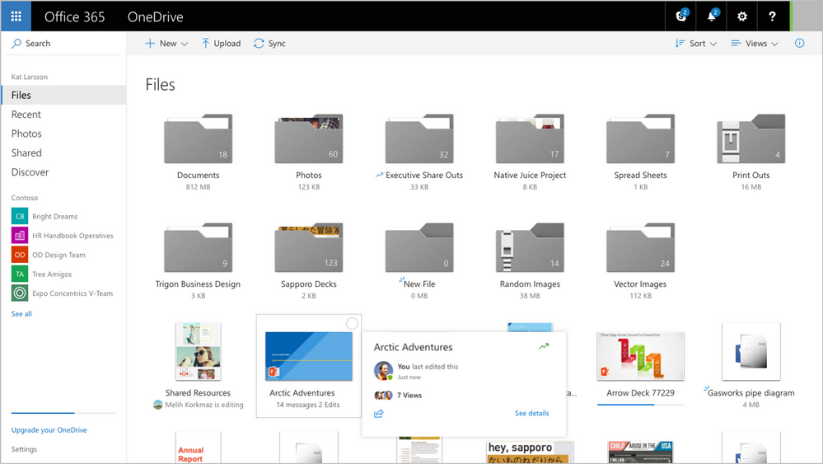
An update to the OneDrive web UI has resulted in delivering visual information quickly and concisely with one glance. If there are documents in the folder, there will now be a slip of paper inside the folder and the folders now sport a number count of items in it. New items will generate a notification to alert that there is a new item while the hover panel not only provides stats but it now also provides the opportunity to share directly from the hover panel. The People Card and Info Pane quickly provide information as to who has accessed content, what content has been shared, and who has not accessed the content. OneDrive is now faster, more intuitive, and highly responsive, resulting in a streamlined, efficient and maximized workflow process.
Seamless Sharing in Office, Windows, and Mac
Office 2016 will reflect the updated sharing UI whereby the sharing of Mac, Windows, and the Web have been standardized and will be seamless across platforms.
Multi-Geo
Multi-Geo addresses data residency and compliance for global companies. In SharePoint and OneDrive in Office 365, the multi-geo capability will provide a choice of geographical locations to store and manage your data. One or more satellite geo locations will connect to the main Office 365 tenant, the default location. In other words, Multi-Geo allows a single tenant to span across multiple geo locations.
Service Level Encryption with Customer Key
The customer key service is a new layer of security that provides you the control to encrypt and/or decrypt individual encryption keys used to encrypt your cloud storage services for OneDrive and SharePoint in Office 365. The customer key service encryption allows you to revoke or change access to these keys, effectively preventing Microsoft from accessing this content. This added layer not only hands you control of your data but also allows you to meet the compliance and specification policies of your company.
OneDrive Admin Centre
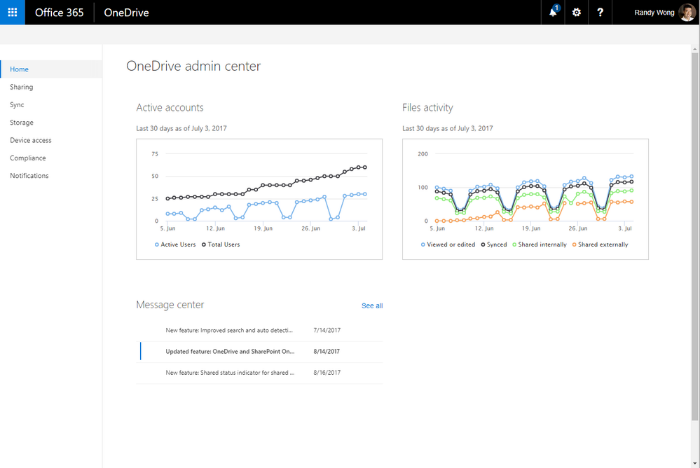
In the OneDrive Admin Centre, information regarding active accounts, file activity, and OneDrive Message Centre are all available on the OneDrive admin console.
Files Restore
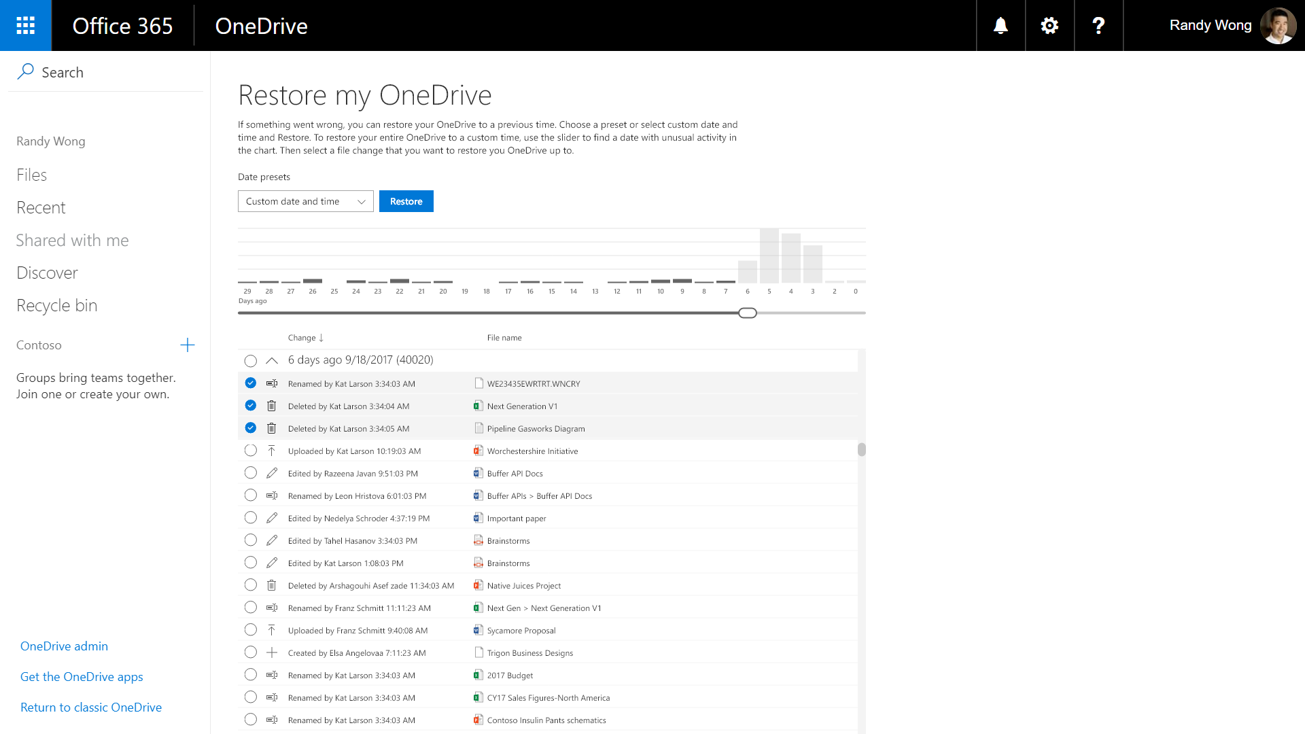
Disaster planning is imperative, and with Files Restore, recovery from disastrous events such as corruption, unexpected data loss or mass deletions, can be performed from this self-service.
Additional highlights include: support for workflows in Microsoft Flow in OneDrive; a self service migration toolkit for those who would like to migrate from share drives or other cloud-bases services to OneDrive on their own; implementation of new ux for mobile clients for ease of sharing and managing files on the go; opening a file in OneDrive web or a shared link to a Word or PowerPoint file will now open right into edit mode of that app; support for clients on Android platforms for OneDrive On-Prem clients; zip files can now be viewed on the web allowing you to see what is inside so that you can choose the files you would like to extract; sync client has now been integrated into Mac Office as part of the installation process; and, the OneDrive sync client released for SharePoint 2019 is now supported.
As you can see, Microsoft continually innovates, updates and adds facets to OneDrive, SharePoint and Office 365 that continually provide better cohesion between platforms, stronger collaboration tools and increased efficiency in the workflow for end-users.
 Friday, March 15, 2019
 0 comment