After Microsoft announced the deprecation of InfoPath Web Forms in 2014, there has been much speculation as to what would be coming forth to replace InfoPath. As explained during this announcement, Microsoft was setting itself on a path to develop an integrated forms technology that allows the user to design and deploy intelligent forms across various platforms including tablets, smart phones and PCs all the while providing quick access to the data.
In April 2016, Microsoft announced Microsoft Forms would be available in its early format in Office 365 but only for the Education module. There has been some ability to access the preview, and from what can be seen, Microsoft Forms is not a replacement for InfoPath. Rather, it is an excellent tool for forms collaboration across platforms and audiences on both PC and mobile.
Once launched in the preview, Microsoft Forms has a look and feel like any other Microsoft application – top three dots in the top right corner provides the options to provide Feedback, ask for Help, navigate to your Office 365 Account Profile, or sign out.
The site has integrated the look and feel of Sway with each created form represented by a tile. If you’re not familiar with Sway, Sway is an application that allows the user to create and interactively share presentations, stories, reports and much more. Similar to SharePoint Mobile App, Sway has the intelligence to provide suggestions for adding content like images, videos, and tweets that are relevant to your project without you having to exit and search on the web.
Sway provides an organized and clean view of your forms. Each form is represented by a tile and each tile clearly shows the title of the form along with its subtitle. From this page, you have the ability to create a new form by selecting New Form.
Once selected, you can begin creating your form by naming your form and providing a subtitle. You are now ready for the next step – creating the form. Creating the form is very simple. You must decide upon the format of the form and there are three styles that you can choose: Choice, Text and Rating.
Choice is set up as a question and answer form with choices. You have the option of adding additional questions to the default two question slots. The form can be customized to an extent. There is the capability of adding the parameter of “Answer Required” to ensure that the question is answered. There is also the ability to add a subset question to the main question if more context is needed. Quite often, the answer for a subset question is one that the responder answers in their own words, and this can be done through the Other option.
Text is a simple and straightforward question and answer form. You develop the questions and the responder is provided space to respond with their own answers. Answers can be limited or unlimited in character count.
Rating forms provide your audience the opportunity to rate something such as skill, applicability, abilities, taste, or satisfaction. The rating scale is set at either 5 or 10 with the option of expressing the rating with stars or numbers.
Microsoft Forms web app continually and automatically saves your work and once you have finished designing your form, you have the ability to either preview it before sharing or share without previewing. If you choose Preview, then you will have the opportunity of previewing from two views: a computer view and a mobile view.
Once you are satisfied with your form, you can proceed to share it with your audience. Sharing your form, or quiz, can be as simple as sharing in an email the URL, a QR code or the embed code. There is also the opportunity to provide additional information to your audience such as whether they need to login to access the questions, whether it is a one-time only quiz or if they can answer the quiz multiple times, and the deadline to complete the quiz. Because this will be launched with the Education module, there is an excellent option that allows you to shuffle the questions when they load. This is great for administering classroom quizzes.
Providing a form for a quiz or survey is only as good as the information that can be gathered from it. Microsoft Forms provides a summary of how your audience has answered the quiz or survey. Under the Responses tab, one can find the results of the quiz including the number of responses, the average time to complete, whether the form is still active and open for submissions, a visual graph of the responses and the average rating. Currently, there is the option to download your quiz to your PC with the Open in Excel option. Perhaps in the future, this option will be replaced with Save in OneDrive to maintain consistency with the direction of SharePoint Mobile App and Office 365.
Though Microsoft Forms for Office 365 and SharePoint 2016 have not been released, it has been released as a preview for the Education Module. From this preview, we can see that this application provides the user the flexibility to elicit information from a targeted audience, gather analytics, and based on this, provide solutions. Microsoft Forms is another step towards the direction of integrated, cross platform, collaborative, and mobile applications.
Today, we are more on-the–go than we have ever been and access to digital information has never been more critical with on demand immediate access. Have you ever lost your smart phone or your tablet? Been in a remote area without any connection? Felt flustered and lost because you could not reach out to the digital world to grab the information that you require? Have you walked into a meeting ready to “wing it” because the updated information on the project was not accessible once you left the office? SharePoint Mobile App is the solution that has been developed to meet the need of keeping in communication with your corporation’s intranet while you’re on-the-go.
SharePoint is evolving. Changing. Adapting. Meeting users’ needs. SharePoint is now available for your smart phone or tablet with SharePoint Mobile App. SharePoint is now available in your pocket while you’re on the go, providing accessibility to your intranet from any location, 24/7 and across on all your personal mobile devices.
The SharePoint Mobile App works with SharePoint Online in Office 365, on-prem with SharePoint Server 2013 and 2016 and your hybrid environment. It is cloud based, working synergistically with OneDrive, and is available for iOS as well as Android and Windows (the latter two will be available later this year). It is driven by Office Graph, a backend tool which facilitates searches across integrated applications in Office 365 including its content repositories and OneDrive. The artificial intelligence of Graph allows the program to machine learn – analyzing, building and connecting people based on the content that each user accesses the most frequently. As a result, it provides the most pertinent content, sites, portals, and contacts for given projects within a corporate enterprise with extreme ease of access. SharePoint mobile has brought intranet corporate collaboration to a whole new level.
On the Discover screen, one can quickly and easily access corporate news and announcements, most frequented sites, contact list of co-collaborators and search across the corporate structure for digital information through navigation tiles which resemble the Sway environment. With Graph operating in the background, the tiles will feature the information that is most relevant to the collaborator based on their usage, assignments and hits in SharePoint 2016 and Office 365.
With early release versions of SharePoint Mobile App, there will be smaller tiles, or tabs, and when touched, will open and provide details and specific information. Let’s start with the first tab – the Sites tab. By selecting the Sites tab, a list of sites that the collaborator frequents and follows will appear. The next level will provide additional information including recent activity, files and assets, which also include lists, documents, pages and subsites. True to the definition of collaboration, these sites can be easily shared.
As with all Microsoft products, SharePoint Mobile App is linked with other Office apps. What does this mean for the collaborator? This means that there is a seamless integration of Office 365, SharePoint Mobile App and other Office programs such as Word, Excel and the remainder of the suite. For example, when the collaborator is looking at Recent documents and clicks on a Word document, SharePoint Mobile App will take the user directly into the corresponding mobile app so they can readily edit, manage, share or view the document and/or information.
As SharePoint is an intranet collaboration app, having the ability to see who you are collaborating with and having the ability to communicate with them would be vital for a successful project. By touching the People tab, you will be able to browse and find colleagues within your network. By tapping on the individual, pertinent information including their contact information, projects they are collaborating on and team members of these projects will appear.
Though Graph provides the most frequently used and accessed information on an individualized basis, there are instances when it is still necessary to find digital information manually. This brings us to Search. Search in the SharePoint Mobile App provides a full enterprise search so that not only can you search for content, but you can also search for people by applying filters such as sites, files and people. Search crawls across the corporate intranet including the SharePoint team sites, folders in OneDrive for Business, restricted to the ones which you have access to, company portals, and Graph’s recommended content.
Though individual collaborators will see their recommended content, management requires the ability to make announcements, provide resource information, and provide standardized sites and programs that can be accessed by all members in the company. Created by the SharePoint administrators in Office 365, the Links tab will provide corporate wide information for all employees.
SharePoint Mobile App is an extremely powerful tool for on-the-go collaboration. By integrating SharePoint, Office 365 and OneDrive, Microsoft is reshaping and redefining how intranet collaboration is done, what intranet collaboration should look like and why intranet collaboration is vital to the on-the-go corporate work style.
On May 4, 2016, Jeff Teper Corporate Vice President for the OneDrive and SharePoint Teams, unveiled the new cloud-first, e-mobile version along with the vision and roadmap for SharePoint as well as updated and new features which will empower end users to collaborate, stay organized and communicate from anywhere and on any device.
What is the future of SharePoint? Simply put – it is all about people like you and me! SharePoint was created and developed as a platform to share information amongst team members within an organization in a live environment, thereby removing redundant versions of the same document by allowing collaboration in real time.
Microsoft has not lost its focus on this point. In fact, it has been working on strengthening the foundation for collaboration and in-the-moment information accessibility. Truly, SharePoint was designed with people in mind and continues to be developed with people, work productivity and ease of use as focal points.
There are many new features of SharePoint, but the most notable is the ability to access SharePoint from any device – whether it be your mobile phone, tablet or computer. You will have access to the documents that you need, in real time, no matter where you are and no matter what platform you are using.
Naturally, mobile access has been focusing on the Cloud based systems, so what about those who need to remain on-prem? Microsoft is addressing this issue by acknowledging that some customers must remain on-prem and has shifted gears to work with these customers to develop solutions which will allow them to stay on-prem. For others, transitioning may take a bit of time. Again, Microsoft is working with these customers in developing transitioning packages that are tailored to their needs.
SharePoint 2016 brings a lot of new features around hybrid solutions. As the end user, you will not know whether your assets are being accessed in the Cloud or from the on-site server. The Windows experience is seamless – Office 365, OneDrive, Outlook and other business/personal productivity tools have been flawlessly integrated to provide an exceptional product and resulting in many user interface updates.
One of the most useful implementations of software is Discovery view. There is nothing more frustrating than hunting for a document amongst a sea of hundreds or thousands. Instead, in Discovery view, all you need to do is type in the information you are looking for, and the search engines in the background will pull up possible matches based on the people you are working with, the project and the number of hits. Microsoft has incorporated this into SharePoint which only enhances its power of collaboration.
Trying to find a document in the library list? It was cumbersome, time intensive and caused frustrations when you had a lot of documents in the library. The second most useful update in SharePoint 2016 is the ability to pin a document that you use frequently so it stays at the top of your library list. As if this isn’t cool enough, you can also pin links to a file or folder located in a different document library or website.
True to heart as being a collaborative operating platform, SharePoint has aligned SharePoint Team Sites with Office 365 Groups for ultimate collaboration between products. How will this work? Every group will have a team site and every team site will have simple membership management which, in turn, gives groups the benefits of metadata which will be used for compliance and information classification. This alignment is win-win!
Sometimes, it’s not always a win-win. Even though SharePoint is a collaborative platform, it does have a single weakness: it is not aligned to the way that we work. Let me elaborate on this. For example, how many of you actually write and publish within SharePoint? If you are like the average contributor, you will actually write off-line, save off-line and then, when ready, copy your document to SharePoint and then publish it. Sound familiar? This methodology completely undermines the goal of SharePoint and collaboration. Not only are there multiple versions floating out there on hard-drives, but the very idea of collaborating on one document in real time is thrown out the window. Why are we doing this? It is because moving the document is not easy and when we try to move cross platform, it is even more difficult. Our solution: write, save offline and then copy it into SharePoint, or use an external solution to circumvent the issue. Microsoft recognized that is an issue, a major issue, for their users. To align SharePoint to the way we work, Microsoft’s response is the alignment of Office 365 Groups and SharePoint Team Sites. In addition to aligning these two features, SharePoint will be improving the capability of moving files from OneDrive Business to SharePoint, thereby reducing redundancy in duplicate files and use of external solutions. With these key updates, and the ease of simple page authoring within SharePoint, one will be able to create and publish within SharePoint with ease and confidence.
The future of SharePoint is about the now with your team. The ability to have intranet in your pocket, easily accessible from anywhere from any device. The ability to communicate, update and contribute with ease despite time, distance or place. SharePoint 2016 will provide you the ability to make key decisions in real time on any device. This is the future of SharePoint 2016 – on the go connection, collaboration and key decision making on any device, in any place and at any point in time.
Now that you have created an external list or deployed an app for SharePoint in SharePoint Online, you need to test the security you put in place. Every account that will be accessing and manipulating the external data must have three properties:
In this procedure, you will open the SharePoint Online site and the external list or app for SharePoint with four different accounts.
To validate security on the BCS hybrid
|
Account |
Expected outcome |
Troubleshooting step |
|
Account A
|
External data displayed and editable. |
If the external data does not display or you cannot edit it, check the site permissions, your federation setup, and the membership of your on-premises global security group; for example, the ODataGroup. |
|
Account B
|
External data does not display. |
If the external data does display and you can edit it, check the site/list/app permissions. |
|
Account C
|
External data does not display. |
If the external data does display and you can edit it, check your federation setup and membership of your on-premises global security group (Odata Group). |
|
Account D
|
External data does not display. |
If the external data does display and you can edit it, check the membership of your on-premises global security group (ODataGroup) and the permissions that you set on the OData service endpoint that you configure in Prepare the SharePoint Online environment for the Business Connectivity Services hybrid scenario |
If you see the error message:
ResourceBudgetExceeded, sending throttled status code. Exception=Microsoft.SharePoint.SPResourceBudgetExceededException: ResourceBudgetExceeded at Microsoft.SharePoint.SPResourceTally.Check(Int32 value) at Microsoft.SharePoint.SPAggregateResourceTally.Check(SPResourceKind kind, Int32 value) at Microsoft.SharePoint.Client.SPClientServiceHost.OnBeginRequest()
You can either remove the throttling:
$webapp = Get-SPWebApplication -Identity http://<URL of your on-premises farm>
$rule = $webapp.AppResourceTrackingSettings.Rules.Get([Microsoft.SharePoint.SPResourceKind]::ClientServiceRequestDuration)$rule.Remove()
Or change the throttling value:
$webapp = Get-SPWebApplication -Identity http://<URL of your on-premises farm>
$webapp. AppResourceTrackingSettings.Rules.Add([Microsoft.SharePoint.SPResourceKind]::ClientServiceRequestDuration, 150000, 150000)$webapp.AppResourceTrackingSettings.WindowCount = 10$webapp.AppResourceTrackingSettings.WindowSize = [System.TimeSpan]::FromSeconds(30)
$webapp.Update()
Note: 150000 is time in ms (ergo, 150 seconds).
Setting a hybrid connection between you SharePoint Online and on-premises required communication trusts between the 2 farms. Refer to this article Configuring Hybrid Infrastructure for more details on how to configure your hybrid infrastructure.
At this point in deploying the BCS hybrid scenario, you should confirm that you can access your on-premises SharePoint 2013 farm that has been configured to receive hybrid calls from SharePoint Online.
To confirm access to external URL:
In order to allow your SharePoint Online tenant to connect to your on-premises tenant, you will need to configure your security to allow accepting connection to your services. The following steps are an example of what you need to establish a trust between your Online and on-premises tenants.
Important:
A pass phrase string must be at least eight characters and must have at least three of the following four elements:
Important:
The pass phrase that you enter is not stored. Make sure that you write this down and store it in a safe place. You must have it to refresh the key, such as when you add a new application server to the server farm.
For security precautions or as part of regular maintenance you may decide to generate a new encryption key and force the Secure Store Service to be re-encrypted based on the new key. You can use this same procedure to do this.
Caution:
You should back up the database of the Secure Store Service application before generating a new key.
Setting your permissions on your Online BDC Metadata store is different than the on-premises tenant.
Unlike BCS in SharePoint 2013, BCS in SharePoint Online requires that you configure a connection settings object (CSO), which contains additional information to establish the connection to the external system and the OData source you have created.
When you create a CSO in your SharePoint Online tenant, you must provide a URL for your on-premises farm (the external URL you have configured in your reverse proxy to connect to your internal SharePoint services). Your SharePoint Online tenant will try to reach out to that endpoint in order to invoke your on-premises BCS and connect to your data source.
Whatever URL you may choose to publish, your CSO must have /_vti_bin/client.svc at the end of the URL in order to work properly.
Before you begin this procedure, make sure you have the following:
To create a CSO to your on-premises tenant:
Since your model will be using your Connection Settings object that you create in your SharePoint Online in order to connect to the on-premises data, there are some changes you need to make to it; if you do not do this then your model will not be able to connect to the on-premises data source:
Similar to the steps for your on-premises tenant, you need to import your new ECT file you have modified in the previous section to your SharePoint Online BCS tenant.
Once your model is uploaded successfully you can create a new External List in SharePoint Online and use that to work with your on-premises LOB data.
Follow this article to create an External List.
Setting up SharePoint on-premises requires that you meet basic SSO deployment requirements and then configure SharePoint 2013 services and inbound requests.
When you set up and enable SSO, users in your organization are able to use their corporate credentials to access the Office 365 service offerings. This removes the burden of managing multiple logon identities and passwords. Without SSO, an Office 365 user would have to maintain separate user names and passwords. For an even better end-user experience, you can create and deploy smart links, which can help speed user sign-in requests by reducing the number of redirects necessary for authentication.
In addition to user advantages, administrators and the organization can also benefit from SSO. For example, configuring SSO helps to enforce the organization’s password policies and account restrictions in both the on-premises directory and the Office 365 directory.
To prepare, you must make sure the environment meets the requirements for SSO and verify that the Active Directory and Azure Active Directory tenant is set up in a way that is compatible with single sign-on requirements. Also, Active Directory must be deployed and running in Windows Server 2003 R2, Windows Server 2008, Windows Server 2008 R2, Windows Server 2012, or Windows Server 2012 R2 with a functional level of mixed or native mode. If you plan to use AD FS as your STS, you will need to do one of the following:
In addition, Active Directory must have certain settings configured to work properly with single sign-on. In particular, the UPN, or the user logon name, must be set up in a specific way for each user.
You need to configure the User Profile Service to synchronize user and group profiles from the on-premises Active Directory domain. When federated users access resources in a hybrid environment, the STS makes calls to the User Profile Service to obtain user account metadata, such as the UPN and email property values. This metadata is used by the STS to construct security tokens during the authentication process.
SharePoint Online presents claims to the on-premises SharePoint farm by using the Simple Mail Transfer Protocol (SMTP). To support this, you need to ensure that the SharePoint user profiles for all federated users are populated with the user’s email address by using the correct UPN.
This means that the work email field in the on-premises SharePoint User Profile Store needs to contain the user’s federated email address. For example, if a federated user logs on to the on-premises domain as contoso\karenb and the public domain for the hybrid environment is contoso.com, her federated email address is karenb@contoso.com.
You must verify that the App Management and Microsoft SharePoint Foundation Subscription Settings services are started and configured. These services must be enabled to support certain configuration procedures, and to help register SharePoint Online as a high-trust application in SharePoint 2013.
If the hybrid environment is configured for an inbound authentication topology, you must ensure that a single on-premises web application is configured to receive requests from SharePoint Online. This web application is referred to as the primary web application for the hybrid environment, and it accepts requests from the external endpoint URL. No specific web application configuration is required to support a one-way outbound authentication topology.
In a SharePoint Server 2013 hybrid environment, outbound connections can be made from any on-premises web application. A single SharePoint Server 2013 web application must be configured for inbound connections; it is used as the primary web application for accepting inbound connections and configuring services and connection objects for the hybrid features you deploy. You can either create a new web application and site collection or configure an existing web application for this purpose.
Setting up SharePoint Online requires that you choose an application authentication topology and make additional configuration choices for the service.
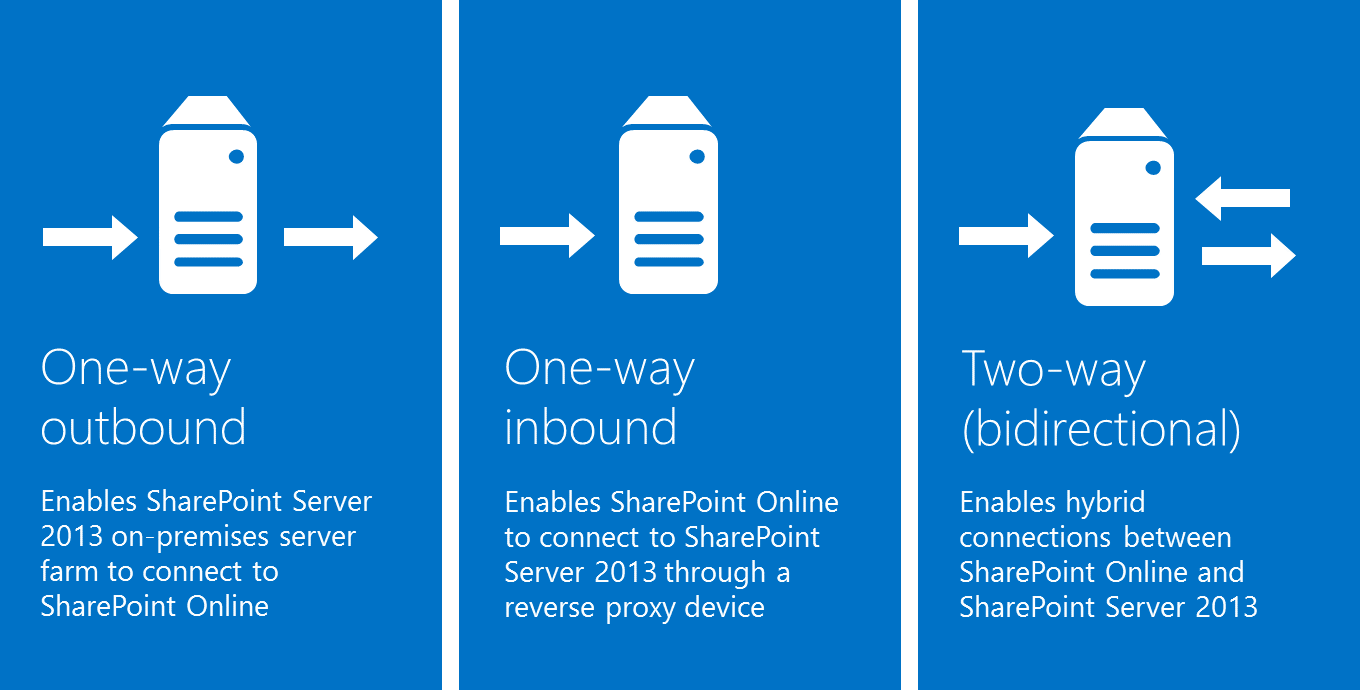
As shown in Figure 1, your choice of an authentication topology determines how certificates are configured and what capabilities are present in the hybrid solution.

Figure 1: Application authentication topologies
One-way outbound topology is not supported with hybrid BCS. Only one-way inbound and two-way (bidirectional) topologies.
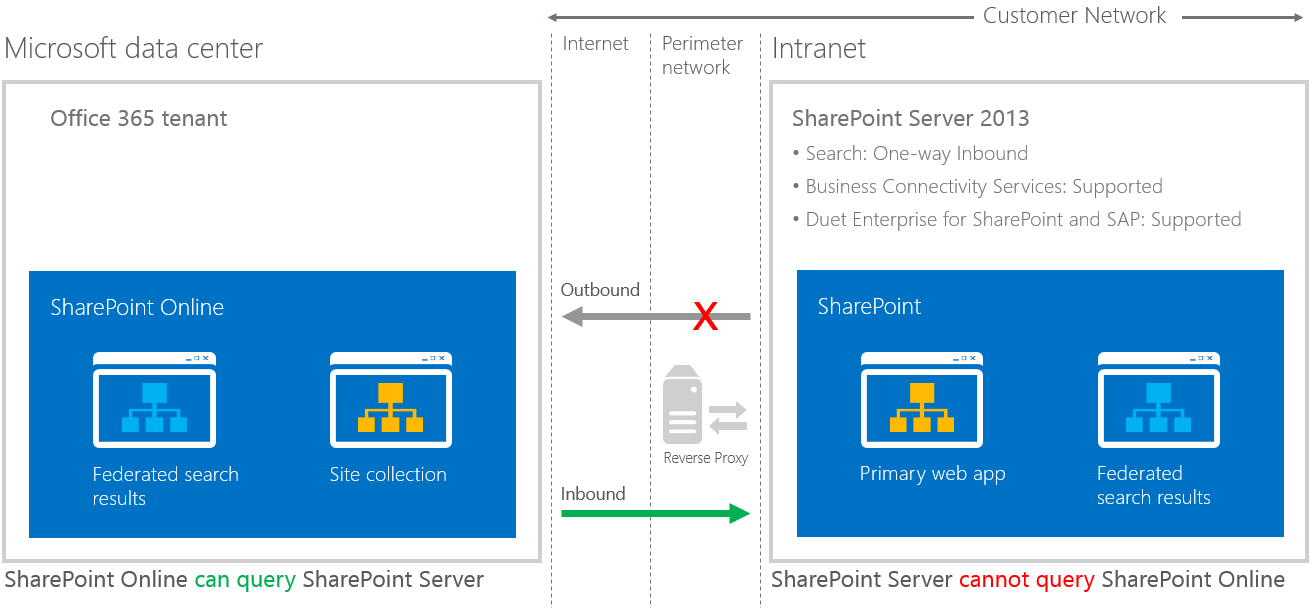
A one-way inbound hybrid topology enables SharePoint Online to connect to SharePoint Server 2013 through a reverse proxy device (Figure 2). For example, users of a SharePoint Online Search portal can see both local and remote search results, but only local results are available in the SharePoint Server 2013 Search portal.

Figure 2: One-way inbound topology
A one-way inbound topology can be configured to let users access on-premises SharePoint search results from the Internet, as long as they have access to the intranet through a virtual private network or DirectAccess.
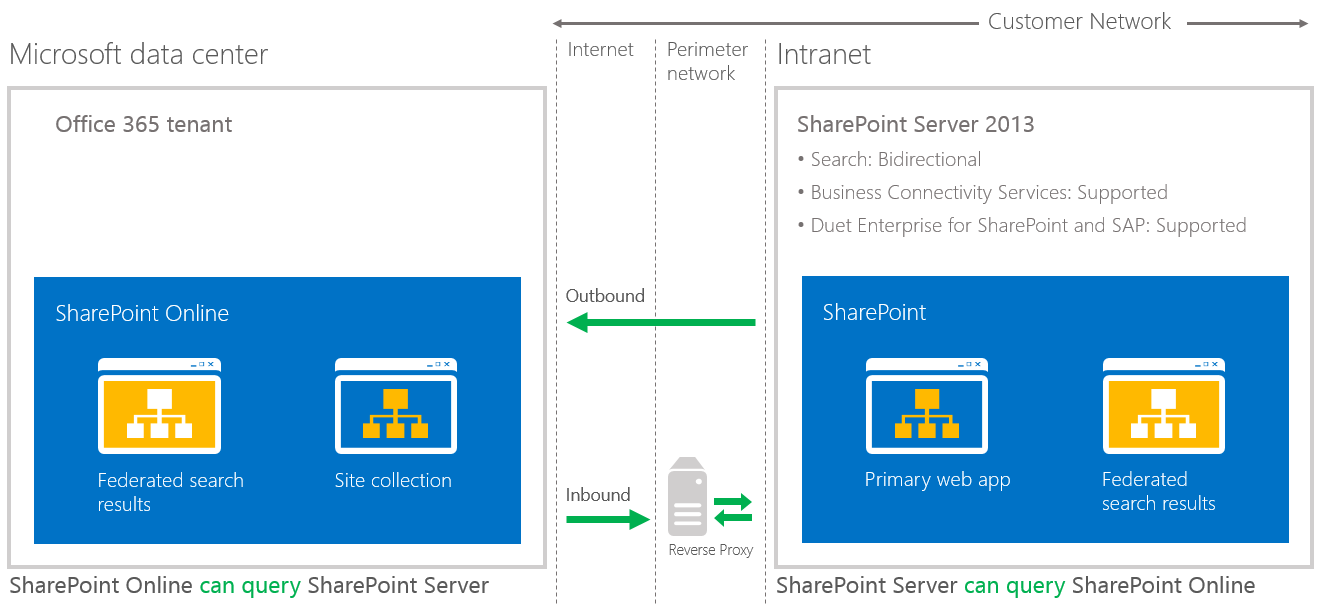
A two-way topology enables bidirectional hybrid service integration between the on-premises SharePoint Server 2013 farm environment and the Office 365 tenant (Figure 3). For example, search can be configured to allow federated users to see both local and remote search results in either SharePoint Server 2013 or SharePoint Online Search portals.

Figure 3: Two-way (bidirectional) topology
A two-way topology can be configured to let users access on-premises SharePoint search results from the Internet, as long as they have access to the intranet through a virtual private network or DirectAccess.
Refer to these articles to configure your reverse proxy server and how to establish a secure connection between your Online and on-premises tenants.
| Link to procedure | Description of procedure |
| Configure a one-way inbound hybrid topology | Learn how to configure the infrastructure for SharePoint 2013 hybrid environments that use a one-way inbound authentication topology. |
| Configure a two-way bidirectional hybrid topology | Learn how to configure the infrastructure for SharePoint 2013 hybrid environments using a two-way authentication topology. |
Next, you will need to create an External Content Type (ECT) based on the OData source. We need to reiterate here that Hybrid BCS implementation only work with OData source based ECT. The ECT can only be created with Visual Studio and not with SharePoint Designer.
To create an ECT, you need the following requirements:
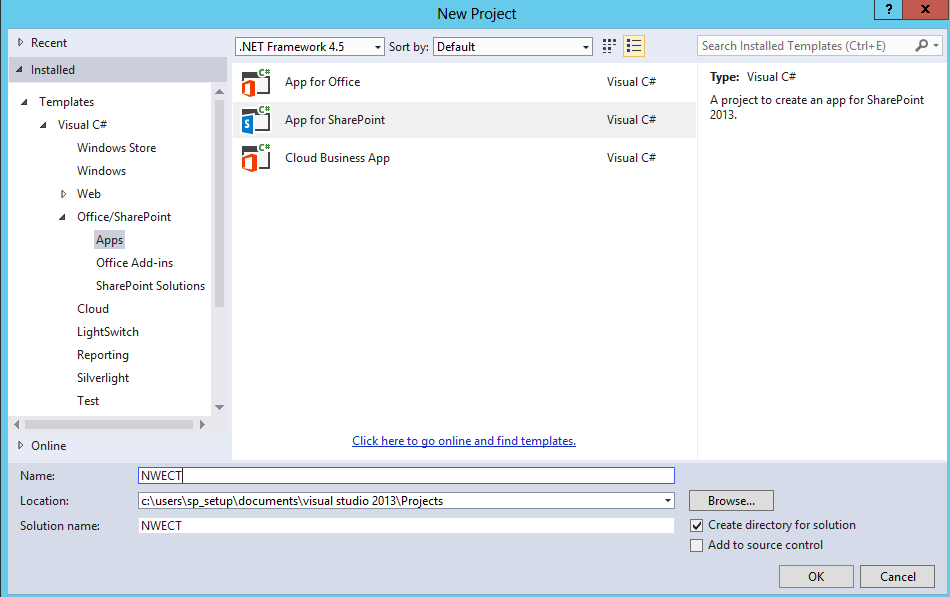
Using Visual Studio 2013, create a new SharePoint App:
This process will create the External Content Type for each of the entity you have selected.
Once you have created your External Content Type, you want to add the ECT to your Business Data Catalog (BDC) catalog so you can use it in your site collections.
In the previous section, we explain how you create an ECT, where each entity in the OData source represents a single ECT. However, the entities use a shared name in the ECT file, which will prevent you from uploading more than one entity to the BDC catalog. In order to fix this issue, you need to follow these steps to be able to use the entities in SharePoint:
Once you have made the changes to all of your ECT files, you can upload all your entities to your BDC model. To do so:
In the past few months, I have been asked many times to architect and design a Hybrid BCS Architecture between SharePoint Online and on-premises, and lately I was asked if I can document it. Given the high demand of such topic, and the fact that the information to implement it is scattered in multiple places, I thought it will be great to share it with the community, and have my blog is a one stop place to follow instructions on how to implement a BCS Hybrid Architecture.
So here it is, this will be a series of blog articles divided by major topic to help you follow and implement Hybrid BCS.
Today’s organizations face significant challenges, including driving IT efficiency and business value in the face of increased pressure to comply with regulations. The goal of any hybridization—or the combining of two related but dissimilar entities—is to gain leverage from the strengths of both parts, while minimizing the components’ weaknesses.
Hybrid computing is based on a computing model that allows organizations to use a combination of traditional and cloud computing environments to achieve a higher degree of flexibility, rather than forcing a choice between either an on-premises or cloud model.
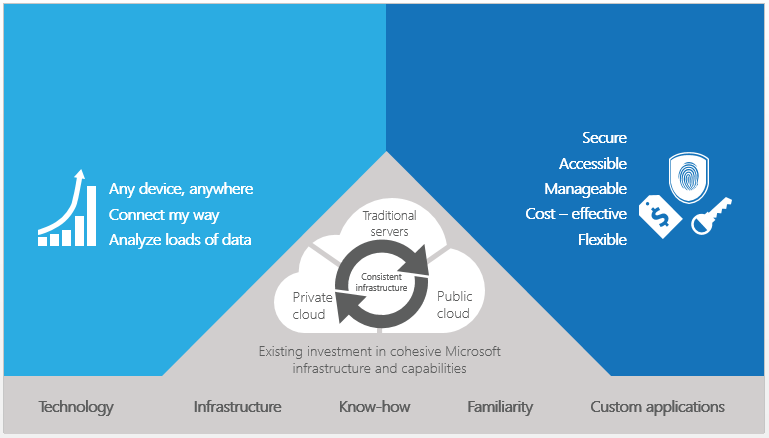
Organizations can use Microsoft SharePoint Online and SharePoint on-premises to achieve a hybrid computing model. With hybrid SharePoint, these organizations can start to realize the benefits associated with the use of cloud computing—coupled with the flexibility to customize the environment and govern data as tightly as in an on-premises system—while delivering a consistent experience to users. Figure 1 shows some of the most immediate benefits, including:

Figure 1: Benefits of a hybrid SharePoint environment
Hybrid environments can be helpful when it is not possible for an organization to migrate to the cloud immediately or in full due to business, technical, or other reasons. Cloud services such as SharePoint Online in Microsoft Office 365 can be an attractive alternative to on-premises SharePoint business solutions, but you might find that you need to deploy only specific solutions in the cloud while still maintaining your on-premises SharePoint farm. New functionality in Microsoft SharePoint Server 2013 and SharePoint Online enables you to integrate services like Search, Business Connectivity Services (BCS), and Duet Enterprise Online across the on-premises/cloud boundary.
The Business Connectivity Service (BCS) is a centralized infrastructure in SharePoint 2013 and Office 2013 that supports integrated data solutions. With Business Connectivity Services, you can use SharePoint 2013 and Office 2013 clients as interfaces into data that doesn’t live in SharePoint 2013 itself. For example, this external data may be in a database and it is accessed by using the out-of-the-box Business Connectivity Services connector for that database. Business Connectivity Services can also connect to data that is available through a web service, or data that is published as an OData source or many other types of external data. Business Connectivity Services does this through out-of-the box or custom connectors. The connectors, as the name implies, are the communication bridge between SharePoint 2013 and the external system that hosts the external data.
At the most fundamental level, every Business Connectivity Services configuration is driven by the location of the Business Connectivity Services infrastructure and the location of the external system that hosts the external data. There are only three ways that the Business Connectivity Services infrastructure and the external system can relate to one another. The Business Connectivity Services infrastructure and the external system can be on your corporate network (all-on-premises), or both the Business Connectivity Services infrastructure and the external system are in the cloud (cloud only).
An on-premises solution is one where the SharePoint 2013 farm and the external system are both behind a company’s firewall and live in company-controlled data centers and users will have to be on the company’s network to access it.
With a cloud-only configuration, Business Connectivity Services in a SharePoint Online tenancy can access data from various cloud services. For example, SharePoint Online can access data from a third-party stock quotes service or from the Windows Azure Marketplace Data Market by using the Business Connectivity Services web service connector. Because this type of solution doesn’t include any customer-maintained SharePoint 2013 farms and hardware and consists of only cloud-based services, it is called a cloud-only solution.
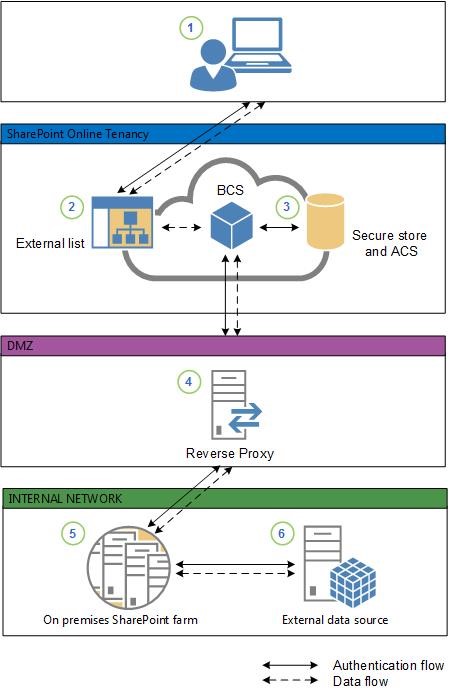
A BCS hybrid solution makes use of SharePoint Online and SharePoint 2013 on-premises. It integrates data from an on-premises OData service endpoint into a SharePoint Online tenancy.
The BCS hybrid solution looks as shown in the following diagram.

The BCS hybrid scenario supports connecting only to an Open Data protocol (Odata) source. If your external data already has an OData service endpoint, then you can skip the creation of an OData service endpoint portions of this procedure.
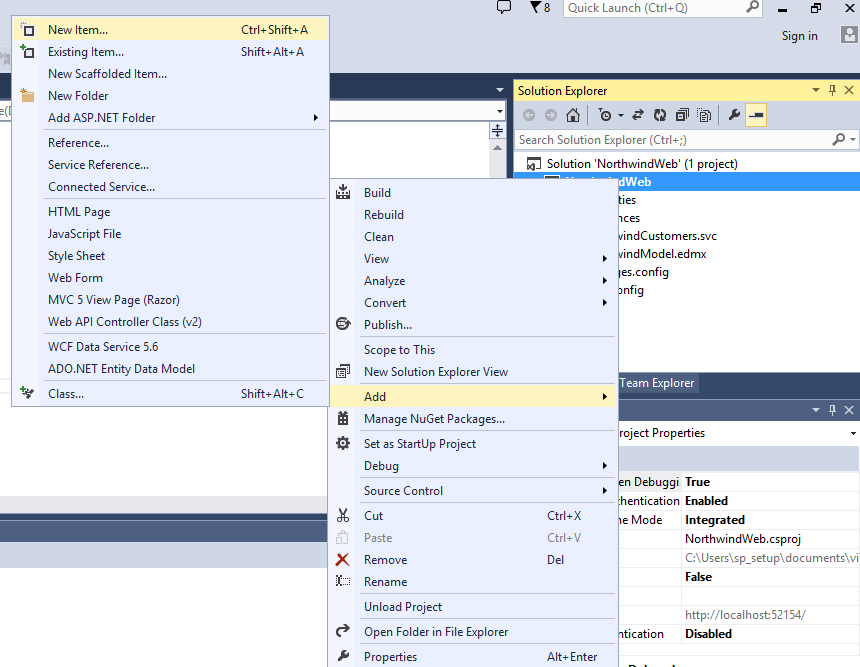
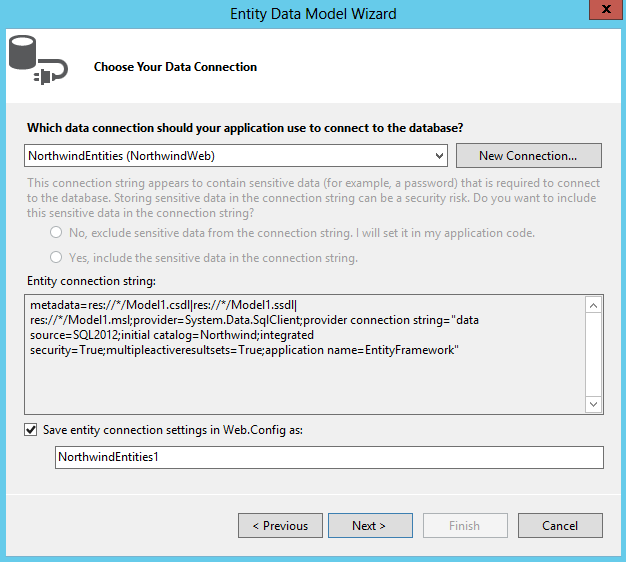
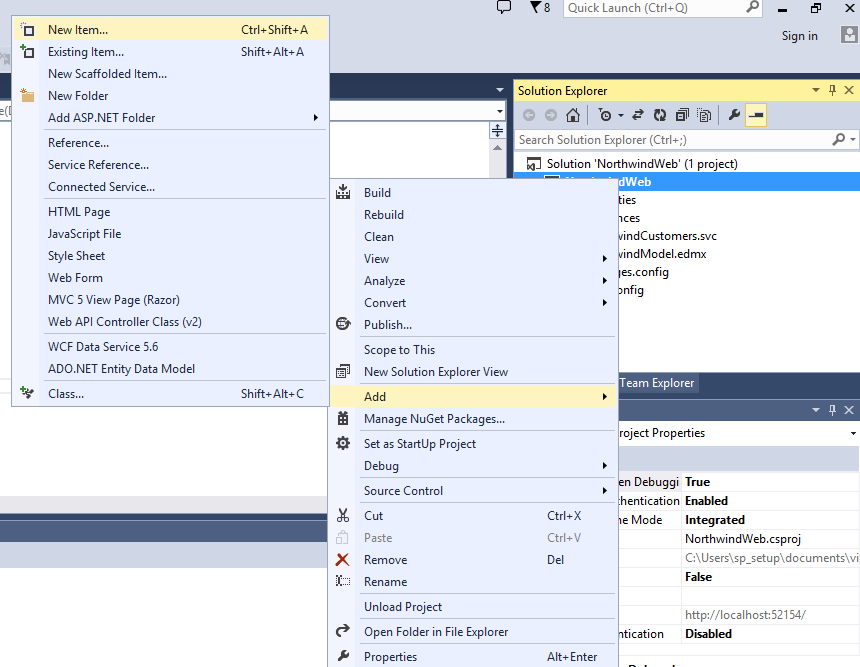
Using Visual Studio 2013, create an empty ASP.NET web application calling it NorthwindWeb, and follow these steps:


This should be for creating an OData Source.
<< Prevoius – Part 1 – Introduction to Hybrid BCS Architecture