SharePoint Framework: Developer and Scaffolding Tools


SharePoint Framework leverages commonly used developer tools and it does not dictate which JavaScript framework should be used to build the solutions. In the past, development of solutions was reserved to Visual Studio on Windows and developers primarily used C#. Communicating with SharePoint was done using SharePoint’s server API, or most recently, CSOM, JSOM or REST. The shift from a proprietary model requiring a significant amount of knowledge to a flexible and highly customizable framework was driven by huge customer demand for the need to customize SharePoint on-prem, online and in the Cloud. In addition, traditional farm based solution is incompatible with cloud based tools and technology. In order to continue moving forward with cloud based applications, a major change had to take place.

SharePoint Framework is highly customizable as it is entirely based on open source JavaScript. Its framework was developed in React as Microsoft chose to develop Delve and the new document library in React. Design and build is executed in the superset of JavaScript – TypeScript. TypeScript is then transpiled into JavaScript making development work more routine-based thus reducing coding errors. Though it is not mandatory that developers use TypeScript, though the investment of learning it will pay off in the long run, it should be noted that it is highly recommended that development of solutions should be done with TypeScript to ensure that customized solutions will be mobile friendly and looking great across all platforms during build and final release.

SharePoint Framework allows you to extend your existing tools and solutions while taking full advantage of exciting open source tools such as Yeoman, Gulp, Workbench, Node.js, GitHub and Angular while still maintaining the option to use Visual Studio, Visual Studio Code and Visual Studio Team Services.

Many open source tools have been available in the open source community for a number of years, but these tools are "new" in SharePoint Framework. Most notably are three products that are an integral part of SharePoint Framework and they each support the framework in the following capacities:

Yeoman is the scaffolding tool for web applications. With Yeoman, developers can create project structures that facilitate the use of custom functionality. This in turn allows developers to work faster.

Gulp makes development efficient through the leveraging of a wide variety of plug-ins to perform repetitive development tasks, automate minification and perform compression.

Workbench allows the developer to test new web parts and apps before migrating them to production environments by replicating SharePoint as a local and offline environment.

SharePoint Page Experience

As a core component, the modern SharePoint Page has a notably developer friendly page structure. Pages can be constructed by using any client-side JavaScript templating framework and can be technologically independent. This page structure provides the ability to host web parts, add-ins and new opportunities.

The framework provides a page layout that is responsive and mobile-ready. Each page has a "Chrome" structure that surrounds the page body. This section contains the out of the box logic supplied by Microsoft plus additional developer logic that has been built on top of it. Simply put, it contains your business context. This Chrome layer manages the presentation of the page so that it displays appropriately on the device whether it be desktop, tablet or smartphone.

The Page Body becomes the canvas where web parts, apps, files, Delve components and other elements can be placed and arranged according to business needs. By layering this on top of the Chrome layer, there is no need to worry about proper display presentation on different devices. The Page Body is where the developer mostly lives, interacting with anything that has been built and placed here. The developer, regardless of skill level, is able to customize SharePoint pages by adding any build that has been placed on the canvas by clicking on a plus sign, selecting and placing the components.

Through this process, developers will be able to extend the capabilities of SharePoint more efficiently, reliably and quickly, and best of all, if you follow the rules, it will be mobile ready and responsive right from the start.

As SharePoint Framework has not yet been released, the question of how do we prepare for it begs to be asked. Stay tuned as I answer this question in the second installment of The New SharePoint Framework: Prepare Yourself!

SharePoint and PowerApps


PowerApps is a powerful tool aimed at power users.  Since teams use SharePoint lists to access, share and collaborate around structured data, PowerApps utilizes SharePoint lists as the data source.  By bringing PowerApps,  Flow and SharePoint together, capturing data and producing useable business apps is a natural progression for cross platform data integration.

PowerApps can be created on mobile (PowerApps Mobile), on the web (PowerApps Studio) or on-prem (On-Premises Data Gateway) and can be published on the web or on mobile.  Not only can data be derived from SharePoint lists, but the data can also be derived from Excel files, Dynamics CRM record, custom APIs, Dropbox, Azure Blob, Azure Service Bus and a host of other sources.  As with Flow, PowerApps does not require any coding on your part.  PowerApps supplies a variety of templates which are customizable to your business needs.  The business apps that you build can use the device’s capabilities such as the camera, pen control and GPS. 

There is a major difference between Forms and PowerApps.  The functionality and purpose of each is very different.  Forms, which is currently under preview in the Education module, behaves very much like a questionnaire whereby the creator poses questions and the user will answer the questions in multiple choice style.  For more details of how Forms works, please refer to my article Microsoft Forms in Office 365 and SharePoint 2016

PowerApps, on the other hand, is not a questionnaire, but a business application which provides the user information that is derived from actual data via an app that is created with PowerApps and SharePoint lists.  For example, from the SharePoint list view menu, you will have an option to create a PowerApp for this list.  By initializing the Create PowerApp option, the PowerApps web designer will open in your web browser and the web designer will automatically create a default app for you based on the schema and data of that list.  You can then customize the app to suit your business needs.  These apps will show up as views and can be shared and launched from the SharePoint list. 

By leveraging the functionality of PowerApps to build custom and mobile capable views of your existing lists and sharing them with your team, it further enhances the collaboration aspect of SharePoint.  PowerApps is a cross-platform service and can run on all your devices, including Windows, Android, iOS and web browsers.

Microsoft continues to build upon the collaboration aspect of SharePoint and is integrating many of its services to strengthen collaboration amongst team members.  SharePoint and Office 365 are continuing to become stronger applications with greater versatility and functionality with the integration of PowerApps.   

SharePoint and Flow


Technology has advanced in leaps and bounds in recent years, but one of the issues has been how do we get all these different apps to talk to each other across different platforms? Is there a product that can be the seamless handshake between these apps? Absolutely! This is where Microsoft Flow steps in.

The integration of Flow with SharePoint addresses the issues of cross application action-reaction events, or IF this, then that scenarios. There is no need to write a single line of code to achieve this as Flow has templates integrated within it so creating and managing your flows are simple while saving you precious time to focus on more important tasks.

By integrating Flow as a workflow tool into SharePoint Online lists and libraries, Microsoft has achieved a powerhouse which is able to quickly deliver automated information with ease to your audiences on-prem or in the Cloud. The ability to automate and receive notifications, synchronize files and obtain data between your favorite apps and services provides you the ability to reach out beyond your intranet.

The templates that are currently included in Flow allow you to create workflows with 43 services, including Office 365, SharePoint, Facebook, Twitter, YouTube, Mail Chimp, One Drive, Dynamics CRM, Google Drive, Slack, Dropbox, Salesforce, SQL, GitHub, Wunderlist and Instagram. Microsoft has indicated that they will continue to add more services and templates as they continue to work with the integration of the two programs. One key feature, as with most Microsoft products, there is the option for community members to contribute their flow for other members to use.


Unlike SharePoint Designer, Flow does not require lists and items to be in one site. With Flow, it will search for your items no matter where they are stored in SharePoint, even if the site resides in different site collections or a different tenant. This provides the power to initiate and generate notifications based on events across your corporation to your targeted audience.

Not only does Flow and SharePoint reach out to your audience, your audiences’ actions reaches back to Flow. Every event that you have indicated as a trigger, whether it be the project name, a hashtag, or a person’s name, each generated notification is logged into a SharePoint list or an Excel file and each time your audience uses these triggers, it logs this information. The data can then be analyzed at a later time. Not only is this beneficial for analytics, but the ability to add a recurrent step for delivery of this data is built into Flow. The recurrence can be set to occur weekly, daily, hourly or as frequently as minutes and seconds.

Microsoft continues to integrate their products so there is more cohesion between their various applications and third party ware. In this case, the integration of Flow with SharePoint has provided greater accessibility for users and better analytics for the corporation all the while increasing productivity and lessening the workload.

Microsoft Forms in Office 365 and SharePoint 2016


After Microsoft announced the deprecation of InfoPath Web Forms in 2014, there has been much speculation as to what would be coming forth to replace InfoPath.  As explained during this announcement, Microsoft was setting itself on a path to develop an integrated forms technology that allows the user to design and deploy intelligent forms across various platforms including tablets, smart phones and PCs all the while providing quick access to the data.  

In April 2016, Microsoft announced Microsoft Forms would be available in its early format in Office 365 but only for the Education module.  There has been some ability to access the preview, and from what can be seen, Microsoft Forms is not a replacement for InfoPath. Rather, it is an excellent tool for forms collaboration across platforms and audiences on both PC and mobile.

Once launched in the preview, Microsoft Forms has a look and feel like any other Microsoft application – top three dots in the top right corner provides the options to provide Feedback, ask for Help, navigate to your Office 365 Account Profile, or sign out. 

The site has integrated the look and feel of Sway with each created form represented by a tile.  If you’re not familiar with Sway, Sway is an application that allows the user to create and interactively share presentations, stories, reports and much more.  Similar to SharePoint Mobile App, Sway has the intelligence to provide suggestions for adding content like images, videos, and tweets that are relevant to your project without you having to exit and search on the web. 

Sway provides an organized and clean view of your forms.  Each form is represented by a tile and each tile clearly shows the title of the form along with its subtitle.  From this page, you have the ability to create a new form by selecting New Form

Once selected, you can begin creating your form by naming your form and providing a subtitle.  You are now ready for the next step – creating the form.  Creating the form is very simple.  You must decide upon the format of the form and there are three styles that you can choose: Choice, Text and Rating

Choice is set up as a question and answer form with choices.  You have the option of adding additional questions to the default two question slots. The form can be customized to an extent.  There is the capability of adding the parameter of “Answer Required” to ensure that the question is answered.  There is also the ability to add a subset question to the main question if more context is needed.  Quite often, the answer for a subset question is one that the responder answers in their own words, and this can be done through the Other option. 

Text is a simple and straightforward question and answer form.  You develop the questions and the responder is provided space to respond with their own answers. Answers can be limited or unlimited in character count. 

Rating forms provide your audience the opportunity to rate something such as skill, applicability, abilities, taste, or satisfaction.  The rating scale is set at either 5 or 10 with the option of expressing the rating with stars or numbers.

Microsoft Forms web app continually and automatically saves your work and once you have finished designing your form, you have the ability to either preview it before sharing or share without previewing.  If you choose Preview, then you will have the opportunity of previewing from two views:  a computer view and a mobile view. 

Once you are satisfied with your form, you can proceed to share it with your audience.  Sharing your form, or quiz, can be as simple as sharing in an email the URL, a QR code or the embed code.  There is also the opportunity to provide additional information to your audience such as whether they need to login to access the questions, whether it is a one-time only quiz or if they can answer the quiz multiple times, and the deadline to complete the quiz. Because this will be launched with the Education module, there is an excellent option that allows you to shuffle the questions when they load.  This is great for administering classroom quizzes. 

Providing a form for a quiz or survey is only as good as the information that can be gathered from it.  Microsoft Forms provides a summary of how your audience has answered the quiz or survey.  Under the Responses tab, one can find the results of the quiz including the number of responses, the average time to complete, whether the form is still active and open for submissions, a visual graph of the responses and the average rating.  Currently, there is the option to download your quiz to your PC with the Open in Excel option. Perhaps in the future, this option will be replaced with Save in OneDrive to maintain consistency with the direction of SharePoint Mobile App and Office 365.   

Though Microsoft Forms for Office 365 and SharePoint 2016 have not been released, it has been released as a preview for the Education Module.  From this preview, we can see that this application provides the user the flexibility to elicit information from a targeted audience, gather analytics, and based on this, provide solutions.  Microsoft Forms is another step towards the direction of integrated, cross platform, collaborative, and mobile applications.

SharePoint Everywhere, SharePoint Mobile App


Today, we are more on-thego than we have ever been and access to digital information has never been more critical with on demand immediate access.  Have you ever lost your smart phone or your tablet?  Been in a remote area without any connection?  Felt flustered and lost because you could not reach out to the digital world to grab the information that you require? Have you walked into a meeting ready to “wing it” because the updated information on the project was not accessible once you left the office? SharePoint Mobile App is the solution that has been developed to meet the need of keeping in communication with your corporation’s intranet while you’re on-the-go. 

SharePoint is evolving. Changing. Adapting. Meeting users’ needs.  SharePoint is now available for your smart phone or tablet with SharePoint Mobile App. SharePoint is now available in your pocket while you’re on the go, providing accessibility to your intranet from any location, 24/7 and across on all your personal mobile devices. 

The SharePoint Mobile App works with SharePoint Online in Office 365, on-prem with SharePoint Server 2013 and 2016 and your hybrid environment.  It is cloud based, working synergistically with OneDrive, and is available for iOS as well as Android and Windows (the latter two will be available later this year).  It is driven by Office Graph, a backend tool which facilitates searches across integrated applications in Office 365 including its content repositories and OneDrive.  The artificial intelligence of Graph allows the program to machine learn – analyzing, building and connecting people based on the content that each user accesses the most frequently.  As a result, it provides the most pertinent content, sites, portals, and contacts for given projects within a corporate enterprise with extreme ease of access.  SharePoint mobile has brought intranet corporate collaboration to a whole new level. 

On the Discover screen, one can quickly and easily access corporate news and announcements, most frequented sites, contact list of co-collaborators and search across the corporate structure for digital information through navigation tiles which resemble the Sway environment.  With Graph operating in the background, the tiles will feature the information that is most relevant to the collaborator based on their usage, assignments and hits in SharePoint 2016 and Office 365. 

With early release versions of SharePoint Mobile App, there will be smaller tiles, or tabs, and when touched, will open and provide details and specific information.  Let’s start with the first tab – the Sites tab. By selecting the Sites tab, a list of sites that the collaborator frequents and follows will appear.  The next level will provide additional information including recent activity, files and assets, which also include lists, documents, pages and subsites.  True to the definition of collaboration, these sites can be easily shared. 

As with all Microsoft products, SharePoint Mobile App is linked with other Office apps.  What does this mean for the collaborator?  This means that there is a seamless integration of Office 365, SharePoint Mobile App and other Office programs such as Word, Excel and the remainder of the suite.  For example, when the collaborator is looking at Recent documents and clicks on a Word document, SharePoint Mobile App will take the user directly into the corresponding mobile app so they can readily edit, manage, share or view the document and/or information.   

As SharePoint is an intranet collaboration app, having the ability to see who you are collaborating with and having the ability to communicate with them would be vital for a successful project.  By touching the People tab, you will be able to browse and find colleagues within your network.  By tapping on the individual, pertinent information including their contact information, projects they are collaborating on and team members of these projects will appear.  

Though Graph provides the most frequently used and accessed information on an individualized basis, there are instances when it is still necessary to find digital information manually. This brings us to SearchSearch in the SharePoint Mobile App provides a full enterprise search so that not only can you search for content, but you can also search for people by applying filters such as sites, files and people.  Search crawls across the corporate intranet including the SharePoint team sites, folders in OneDrive for Business, restricted to the ones which you have access to, company portals, and Graph’s recommended content. 

Though individual collaborators will see their recommended content, management requires the ability to make announcements, provide resource information, and provide standardized sites and programs that can be accessed by all members in the company.  Created by the SharePoint administrators in Office 365, the Links tab will provide corporate wide information for all employees. 

SharePoint Mobile App is an extremely powerful tool for on-the-go collaboration.  By integrating SharePoint, Office 365 and OneDrive, Microsoft is reshaping and redefining how intranet collaboration is done, what intranet collaboration should look like and why intranet collaboration is vital to the on-the-go corporate work style. 

Add Content Types in SharePoint Online with CSOM


If you have created your portal in Office 365 and you started adding, you might find yourself at some point that you need to add a new content type and attach it to an existing library. This is typically pretty easy and straight forward if you are adding your new content type to few libraries, but definitely a big headache if you have hundreds or thousands of libraries that must have the new content type. Of course, you cannot delete the library and re-create it from a template, because you have already content in them, then your only option in this case is to script it.

If you are on-premises this is pretty easy, with few lines of PowerShell script, you will be able to achieve what you are looking for. PowerShell on-premises code will look like this:

$site = "http://sp2013/sites/Depts"
$site = Get-SPSite $siteURL
$webRoot = $site.RootWeb
 
$site | Get-SPWeb -limit all | ForEach-Object{
 $web=Get-SPWeb $_.Url
        $customCT = "HR Document"
        $Lib = $web.Lists[“Pages”]
        #make sure you enable content types
 $Lib.ContentTypesEnabled = $true
        $Lib.update();
        $ContentType = $webRoot.ContentTypes[$customCT]
        $Lib.ContentTypes.Add($ContentType)
        $Lib.update() 
}
$site.Dispose()

The above code will not work in SharePoint Online, so we will have to develop CSOM Code to be able to manage the content types remotely. Here is what you need to run:

First, you need to add references to your SharePoint client assemblies.

Add-Type -Path (Resolve-Path "C:\CreatePublishingSite\Microsoft.SharePoint.Client.dll")
Add-Type -Path (Resolve-Path "C:\CreatePublishingSite\Microsoft.SharePoint.Client.Runtime.dll")
Add-Type -Path (Resolve-Path "C:\CreatePublishingSite\Microsoft.SharePoint.Client.Publishing.dll")

Second, you need to authenticate to your SharePoint Online tenant and load your XML file:

$userName = "username@contoso.onmicrosot.com"
$pwd = Read-Host -AsSecureString "Please enter your password"

Third, load the site collection and get the Content Type to apply it to a specific web

$webUrl= "https://contoso.sharepoint.com/sites/yourSiteCollection"
$clientContext = New-Object Microsoft.SharePoint.Client.ClientContext($webUrl)
$siteContext = $clientContext.Site
$RoootWebContext = $siteContext.RootWeb
$webContext = New-Object Microsoft.SharePoint.Client.ClientContext($webUrl)

 
foreach($currentWeb in $webUrl.Webs.Web) {
$currentWeb = $RoootWebContext.Webs.Context.Web
#Get Content Type By Id
$ct = $RoootWebContext.ContentTypes.GetById("0x010100C568DB52D9D0A14D9B2FDCC96666E9F2007948130EC3DB064584E219954237AF390064DEA0F50FC8C147B0B6EA0636C4A7D400BE6DDBAE4894D74D967E5A1A188C147C")
$clientContext.Load($siteContext)
$clientContext.Load($RoootWebContext)
$clientContext.Load($ct)
 
$list = $currentWeb.Lists.GetByTitle("Pages")
$cts = $list.ContentTypes
$clientContext.Load($cts)
$ctReturn = $cts.AddExistingContentType($ct)
$clientContext.Load($ctReturn)
$clientContext.ExecuteQuery()
}

Hybrid BCS Part 5 – Validation

Now that you have created an external list or deployed an app for SharePoint in SharePoint Online, you need to test the security you put in place. Every account that will be accessing and manipulating the external data must have three properties:

  1. It must have user or greater permissions to the SharePoint Online site and the external list or app for SharePoint.
  2. It must be a federated account.
  3. It must be a member of the on-premises global security group that you are using to control access to the OData service endpoint. For example, it must be a member of ODataGroup.

In this procedure, you will open the SharePoint Online site and the external list or app for SharePoint with four different accounts.

To validate security on the BCS hybrid

  1. Identify or create one account for each of the account types listed in the following table.

Account

Expected outcome

Troubleshooting step

Account A

  1. Has site/list/app permissions.
  2. Is federated.
  3. Is a member of the on-premises global security group (ODataGroup).

External data displayed and editable.

If the external data does not display or you cannot edit it, check the site permissions, your federation setup, and the membership of your on-premises global security group; for example, the ODataGroup.

Account B

  1. Does not have site/list/app permissions.
  2. Is federated.
  3. Is a member of the on-premises global security group (ODataGroup).

External data does not display.

If the external data does display and you can edit it, check the site/list/app permissions.

Account C

  1. Has site/list/app permissions.
  2. Is not federated (is an Office 365 account only).
  3. Cannot be added to the on-premises global security group (ODataGroup).

External data does not display.

If the external data does display and you can edit it, check your federation setup and membership of your on-premises global security group (Odata Group).

Account D

  1. Has site/list/app permissions.
  2. Is federated.
  3. Is not a member of your on-premises global security group (ODataGroup).

External data does not display.

If the external data does display and you can edit it, check the membership of your on-premises global security group (ODataGroup) and the permissions that you set on the OData service endpoint that you configure in Prepare the SharePoint Online environment for the Business Connectivity Services hybrid scenario


  1. Open (by using In-Private browsing if possible) the SharePoint Online site that contains the external list or app for SharePoint by using each of the accounts in turn. Be sure to completely log out and close your browser in between tests.
  2. If you don’t see the expected outcome, refer to the troubleshooting step in the previous table, fix the issue, and repeat all four tests until you achieve the expected outcome.

If you see the error message:

ResourceBudgetExceeded, sending throttled status code. Exception=Microsoft.SharePoint.SPResourceBudgetExceededException: ResourceBudgetExceeded at Microsoft.SharePoint.SPResourceTally.Check(Int32 value) at Microsoft.SharePoint.SPAggregateResourceTally.Check(SPResourceKind kind, Int32 value) at Microsoft.SharePoint.Client.SPClientServiceHost.OnBeginRequest()


You can either remove the throttling:

$webapp = Get-SPWebApplication -Identity http://<URL of your on-premises farm>
$rule = $webapp.AppResourceTrackingSettings.Rules.Get([Microsoft.SharePoint.SPResourceKind]::ClientServiceRequestDuration)$rule.Remove()


Or change the throttling value:

$webapp = Get-SPWebApplication -Identity http://<URL of your on-premises farm>
$webapp. AppResourceTrackingSettings.Rules.Add([Microsoft.SharePoint.SPResourceKind]::ClientServiceRequestDuration, 150000, 150000)$webapp.AppResourceTrackingSettings.WindowCount = 10$webapp.AppResourceTrackingSettings.WindowSize = [System.TimeSpan]::FromSeconds(30)
$webapp.Update()

Note: 150000 is time in ms (ergo, 150 seconds).


Troubleshooting the hybrid configuration

  1. Verify that the external data source is running and accessible
  2. Verify that one-way outbound or two-way authentication is working
  3. Verify configuration steps presented earlier
  4. Check logs written by the Unified Logging Service (ULS logs or trace logs)

<< Previous – Part 4 – Connect to on-premises services

Hybrid BCS Part 4 – Connect to on-premises services


Setting a hybrid connection between you SharePoint Online and on-premises required communication trusts between the 2 farms. Refer to this article Configuring Hybrid Infrastructure for more details on how to configure your hybrid infrastructure.

Validate external access to reverse proxy

At this point in deploying the BCS hybrid scenario, you should confirm that you can access your on-premises SharePoint 2013 farm that has been configured to receive hybrid calls from SharePoint Online.

To confirm access to external URL:

  1. Copy the certificate to your extranet computer, and then click the certificate. You will be prompted for the certificate password. This adds the certificate to your personal certificate store.
  2. Open a web browser and browse to the externally published URL of your on-premises farm. You should be prompted for credentials. If not, check your browser settings and make sure that your logged on credentials are not being automatically passed.
  3. Provide the credentials of the federated user. This log on must succeed and you should see the published site. If this does not work, contact the administrators who set up your hybrid infrastructure. Do not proceed any further with the BCS hybrid scenario until this issue is resolved.

Prepare your tenant environment

In order to allow your SharePoint Online tenant to connect to your on-premises tenant, you will need to configure your security to allow accepting connection to your services. The following steps are an example of what you need to establish a trust between your Online and on-premises tenants.

  1. Click a service account that will access the OData service endpoint that you have previously configured; this procedure will be called ODataAccount
  2. Create a global security group for your OData service endpoint; this procedure will be called ODataGroup
  3. Add the service account to the global security group

Configure Secure Store target application

  1. Go to your on-premises tenant SharePoint Central Administration
  2. Navigate to Application Management > Manage service applications
  3. Click the Secure StoreI
  4. if you have never used your Secure Store, you will need to generate a new key first
  5. Click on Generate New Key
  6. Enter your Passphrase then click OK
  7. Click on New under Manage Target Applications
  8. Enter the name of your application, the display name, and your email address
  9. Select Group in the Target Application Type
  10. Click Next
  11. Accept the defaults values in the Create New Secure Store Target Application page
  12. Click Next
  13. Enter the Farm Administrator account in the Target Application Administrators, and enter the group name you created for you OData Service Endpoint in the Members section
  14. Click OK
  15. Click OK

Important:

A pass phrase string must be at least eight characters and must have at least three of the following four elements:

  1. Uppercase characters
  2. Lowercase characters
  3. Numerals
  4. Any of the following special characters
    "! " # $ % & ' ( ) * + , – . / : ; < = > ? @ [ \ ] ^ _ ` { | } ~

Important:

The pass phrase that you enter is not stored. Make sure that you write this down and store it in a safe place. You must have it to refresh the key, such as when you add a new application server to the server farm.

For security precautions or as part of regular maintenance you may decide to generate a new encryption key and force the Secure Store Service to be re-encrypted based on the new key. You can use this same procedure to do this.

Caution:

You should back up the database of the Secure Store Service application before generating a new key.

Set Permissions on your Online BCS

Setting your permissions on your Online BDC Metadata store is different than the on-premises tenant.

    1. Open your SharePoint Online administration page
    2. Click on bcs
    3. Click on Manage BDC Models and External Content Types
    4. Under Permissions, click on Set Metadata Store Permissions
    5. Select All users then set the Execute
    6. Select the checkbox to Propagate permissions to all BDC Model
    7. Click OK

Connect your O365 BCS to your on-premises

Unlike BCS in SharePoint 2013, BCS in SharePoint Online requires that you configure a connection settings object (CSO), which contains additional information to establish the connection to the external system and the OData source you have created.

When you create a CSO in your SharePoint Online tenant, you must provide a URL for your on-premises farm (the external URL you have configured in your reverse proxy to connect to your internal SharePoint services). Your SharePoint Online tenant will try to reach out to that endpoint in order to invoke your on-premises BCS and connect to your data source.

Whatever URL you may choose to publish, your CSO must have /_vti_bin/client.svc at the end of the URL in order to work properly.

Before you begin this procedure, make sure you have the following:

  1. Install configuration tools on an on-premises web server.
  2. The ID of the Secure Store target application that you configured.
  3. The Internet-facing URL that Office 365 uses to connect to the service address and that was published by the reverse proxy
  4. The ID of the Secure Store target application for the Secure Channel certificate in Office 365.

To create a CSO to your on-premises tenant:

  1. Open your SharePoint Online administration page
  2. Click on bcs
  3. Click Manage connections to on-premises services
  4. Click Add
  5. Enter the Title and the OData Service Address URL
  6. Under Authentication, select Use credentials stored in SharePoint on-premises
  7. Enter the Secure Store Target Application ID
  8. Under Authentication Mode, select Impersonate Window’s Identity
  9. Enter the internet facing URL you have configured under the reverse proxy; make sure you include /_vti_bin/client.svc at the end of the URL
  10. Click Create

Since your model will be using your Connection Settings object that you create in your SharePoint Online in order to connect to the on-premises data, there are some changes you need to make to it; if you do not do this then your model will not be able to connect to the on-premises data source:

  1. Make a copy of the ECT file that you'll be importing so you don't break the version you have with your OData project
  2. Delete the ODataServiceMetadataUrl and ODataServiceMetadataAuthenticationMode properties from the LobSystem property list in the ECT file
  3. Delete the ODataServiceUrl and ODataServiceAuthenticationMode properties from the LobSystemInstance property list in the ECT file
  4. Add this property to the list of properties for both the LobSystem and LobSystemInstance:  <Property Name="ODataConnectionSettingsId" Type="System.String">yourConnectionSettingsObjectName</Property>

Import your ECT file to SharePoint Online

Similar to the steps for your on-premises tenant, you need to import your new ECT file you have modified in the previous section to your SharePoint Online BCS tenant.

  1. Open your SharePoint Online administration page
  2. Click on bcs
  3. Click on Manage your BDC Models and External Content Types
  4. Click on Import
  5. Navigate to your ECT file locations and import each ECT file; as an alternative solution, you can develop a PowerShell script to import all the files
  6. Click OK

Once your model is uploaded successfully you can create a new External List in SharePoint Online and use that to work with your on-premises LOB data.

Follow this article to create an External List.


<< Previous – Part 3 – External Content Type Configuration 

>> Next – Part 5 – Validation

Introduction to Hybrid BCS Architecture – Part 1


In the past few months, I have been asked many times to architect and design a Hybrid BCS Architecture between SharePoint Online and on-premises, and lately I was asked if I can document it. Given the high demand of such topic, and the fact that the information to implement it is scattered in multiple places, I thought it will be great to share it with the community, and have my blog is a one stop place to follow instructions on how to implement a BCS Hybrid Architecture.

So here it is, this will be a series of blog articles divided by major topic to help you follow and implement Hybrid BCS.

Introduction to hybrid computing

Today’s organizations face significant challenges, including driving IT efficiency and business value in the face of increased pressure to comply with regulations. The goal of any hybridization—or the combining of two related but dissimilar entities—is to gain leverage from the strengths of both parts, while minimizing the components’ weaknesses.

Hybrid computing is based on a computing model that allows organizations to use a combination of traditional and cloud computing environments to achieve a higher degree of flexibility, rather than forcing a choice between either an on-premises or cloud model.

Why hybrid SharePoint?

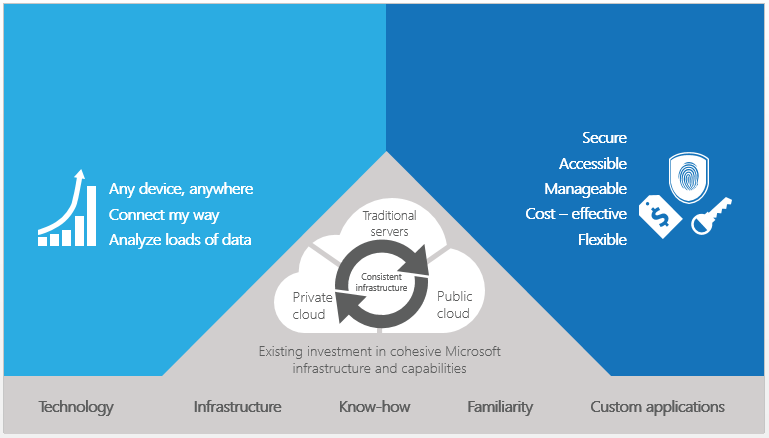
Organizations can use Microsoft SharePoint Online and SharePoint on-premises to achieve a hybrid computing model. With hybrid SharePoint, these organizations can start to realize the benefits associated with the use of cloud computing—coupled with the flexibility to customize the environment and govern data as tightly as in an on-premises system—while delivering a consistent experience to users. Figure 1 shows some of the most immediate benefits, including:

  1. Maintain consistency across clouds with familiar tools and resources.
  2. Extend your data center with a consistent management toolset and familiar development and identity solutions.
  3. Provide enterprise-grade performance and security in the data center and in the cloud.
  4. Meet changing business needs with greater flexibility.
  5. Deliver capacity on demand.

Benefits of Hybrid Environment
Figure 1: Benefits of a hybrid SharePoint environment

How do SharePoint Online and SharePoint on-premises coexist?

Hybrid environments can be helpful when it is not possible for an organization to migrate to the cloud immediately or in full due to business, technical, or other reasons. Cloud services such as SharePoint Online in Microsoft Office 365 can be an attractive alternative to on-premises SharePoint business solutions, but you might find that you need to deploy only specific solutions in the cloud while still maintaining your on-premises SharePoint farm. New functionality in Microsoft SharePoint Server 2013 and SharePoint Online enables you to integrate services like Search, Business Connectivity Services (BCS), and Duet Enterprise Online across the on-premises/cloud boundary.

Introduction to Business Connectivity Service

The Business Connectivity Service (BCS) is a centralized infrastructure in SharePoint 2013 and Office 2013 that supports integrated data solutions. With Business Connectivity Services, you can use SharePoint 2013 and Office 2013 clients as interfaces into data that doesn’t live in SharePoint 2013 itself. For example, this external data may be in a database and it is accessed by using the out-of-the-box Business Connectivity Services connector for that database. Business Connectivity Services can also connect to data that is available through a web service, or data that is published as an OData source or many other types of external data. Business Connectivity Services does this through out-of-the box or custom connectors. The connectors, as the name implies, are the communication bridge between SharePoint 2013 and the external system that hosts the external data.

At the most fundamental level, every Business Connectivity Services configuration is driven by the location of the Business Connectivity Services infrastructure and the location of the external system that hosts the external data. There are only three ways that the Business Connectivity Services infrastructure and the external system can relate to one another. The Business Connectivity Services infrastructure and the external system can be on your corporate network (all-on-premises), or both the Business Connectivity Services infrastructure and the external system are in the cloud (cloud only).

An on-premises solution is one where the SharePoint 2013 farm and the external system are both behind a company’s firewall and live in company-controlled data centers and users will have to be on the company’s network to access it.

With a cloud-only configuration, Business Connectivity Services in a SharePoint Online tenancy can access data from various cloud services. For example, SharePoint Online can access data from a third-party stock quotes service or from the Windows Azure Marketplace Data Market by using the Business Connectivity Services web service connector. Because this type of solution doesn’t include any customer-maintained SharePoint 2013 farms and hardware and consists of only cloud-based services, it is called a cloud-only solution.

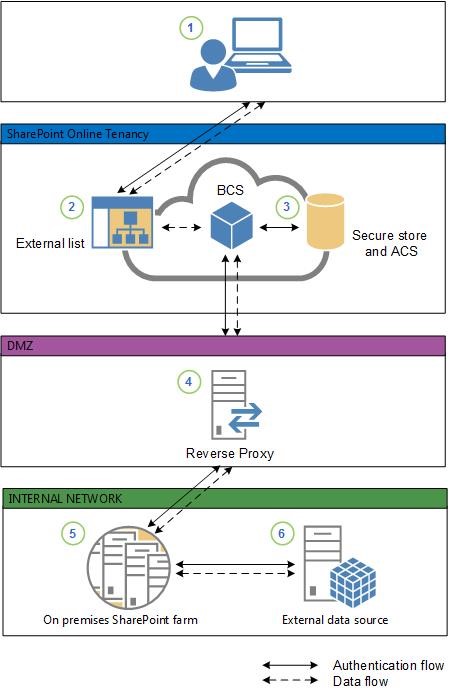
A BCS hybrid solution makes use of SharePoint Online and SharePoint 2013 on-premises. It integrates data from an on-premises OData service endpoint into a SharePoint Online tenancy.

The BCS hybrid solution looks as shown in the following diagram.

Hybrid BCS

>> Next – Part 2 – Create an OData Source